Display options
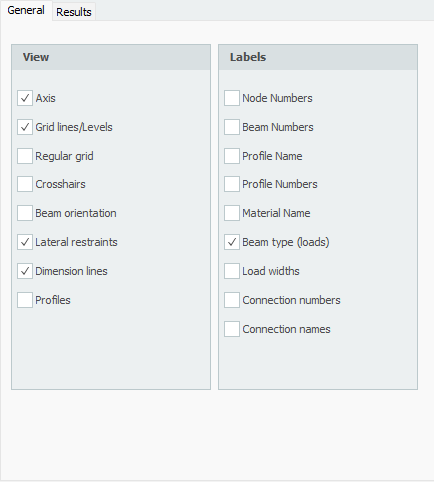
Axis
Draw the global coordinate system
Grid lines/ Levels
Grid lines, levels and/or help lines will be drawn dotted. See Grid lines / levels.
Regular grid
A regular grid is drawn. The size and the color of the regular grid are adaptable. See Regular grid.
Crosshairs
Two crosshairs are drawn (horizontal and vertical). This can come in hand with inserting nodes and beams.
Beam orientation
The local coordinate system (see Design arrangement ) will be drawn in the middle of the beam. The direction of the local z-axis is shown. This is important for inserting the beam loads which are entered in the local beam coordinate system. See Beam loads.
Node numbers
Node numbers are shown between brackets (..) at the node.
Beam numbers
The beam numbers are shown between square brackets [..] at the beam.
Profile names
The profile names are shown at the beam.
Profile numbers Material names
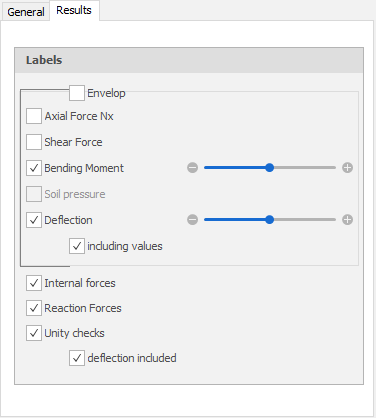
Axial force
Drawing of the N-line. The scale can be set.
Shear force.
Drawing of the D-line. The scale can be set.
Bending Moment
Drawing of the M-line. The scale can be set.
Soil pressure
For beams on an elastic foundation (Shallow foundation) the soil pressure can be displayed. The scale can be set.
Deflection
Drawing of the deflection line. The scale can be set.
Internal Forces
Drawing of the internal forces.
Reaction Forces
Drawing of the reaction forces in all the supports.
Unity checks
Per beam the unity checks can be displayed. These are results form the check according to the Eurocode (steel or timber). When the unity check is smaller than 1,00 the beam meets the criteria, and a green dot is drawn.  . When the unity check is bigger than 1,00 the beam does not meet the criteria and a red triangle
 is drawn.
When you double click on the dot/triangle, a detailed calculation of the concerning beam is shown.
XFrame2d