Weergaveopties
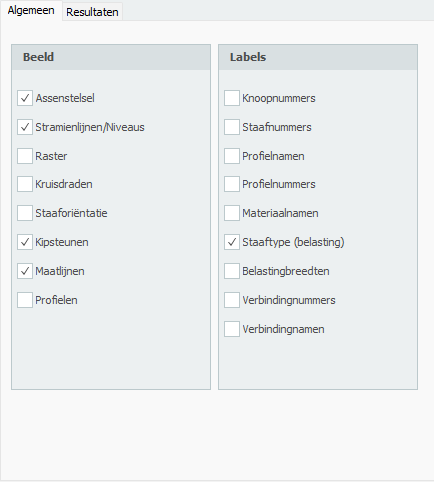
As
Teken het globale assenstelsel.
Stramienlijnen / Niveaus
Stramienlijnen, niveaus en/of hulplijnen worden gestippeld getekend. Zie Stramienlijnen / Niveaus.
Regelmatig raster
Er wordt een regelmatig raster getekend. De grootte en de kleur van het regelmatige raster zijn aanpasbaar. Zie Regelmatig raster.
Kruisdraden
Er worden twee kruisdraden getekend (horizontaal en verticaal). Dit kan handig zijn bij het invoeren van knopen en staven.
Staaforiëntatie
Het lokale assenstelsel (zie Tekenafspraak) wordt in het midden van de staaf getekend. De richting van de lokale z-as wordt getoond. Dit is belangrijk voor het invoeren van de staafbelastingen die in het lokale staaf-assenstelsel worden ingevoerd. Zie Staafbelastingen.
Knoopnummers
Knoopnummers worden tussen haakjes (..) bij de knoop getoond.
Staafnummers
De staafnummers worden tussen vierkante haken [..] bij de staaf getoond.
Profielnamen
De profielnamen worden bij de staaf getoond.
Profielnummers
Materiaalnamen
Normaalkracht
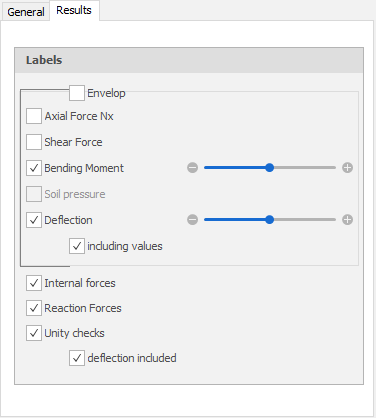
Tekening van de N-lijn. De schaal kan worden ingesteld.
Dwarskracht
Tekening van de D-lijn. De schaal kan worden ingesteld.
Buigend moment
Tekening van de M-lijn. De schaal kan worden ingesteld.
Gronddruk
Voor staven op een elastische fundering (fundering op staal) kan de gronddruk worden weergegeven. De schaal kan worden ingesteld.
Doorbuiging
Tekening van de doorbuigingslijn. De schaal kan worden ingesteld.
Interne krachten
Tekening van de interne krachten.
Reactiekrachten
Tekening van de reactiekrachten in alle opleggingen.
Unity checks
Per staaf kunnen de unity checks worden weergegeven. Dit zijn resultaten van de toetsing volgens de Eurocode (staal of hout). Wanneer de unity check kleiner is dan 1,00 voldoet de staaf aan de criteria en wordt een groene stip getekend.  . Wanneer de unity check groter is dan 1,00 voldoet de staaf niet aan de criteria en wordt een rode driehoek
  getekend.
Wanneer u dubbelklikt op de stip/driehoek, wordt een gedetailleerde berekening van de betreffende staaf getoond.
XFrame2d