XFrame2d Manual
| Copyright | Copyright © 2025 XFrame2d |
Welkom bij XFrame2d Handleiding
XFrame2d is het gereedschap voor alle ingenieurs.
Met XFrame2d kunt u snel en eenvoudig de geometrisch lineaire of geometrisch niet-lineaire krachtsverdeling in uw constructie bepalen. Het programma is zeer gebruiksvriendelijk, modern en zeer snel.
XFrame2d heeft een volledig geintegreerde staal- en houtmodule, waarin de staal- en houtconstructie ook wordt getoetst volgens EN1993 en EN1995.
XFrame2d maakt een uitgebreid en leesbaar berekeningsrapport in RTF- of PDF-formaat. XFrame2d maakt een volledig transparant berekeningsrapport, op deze manier kunt u als ingenieur de geproduceerde berekening handmatig en eenvoudig controleren.
Voor de staal- en houtmodule betekent dit dat alle toegepaste formules volledig worden weergegeven, inclusief de werkelijke parameters. Dit geeft u inzicht in de berekening, en hierdoor zal elke inspecterende autoriteit uw berekening zonder enig probleem accepteren, aangezien het rapport voor iedereen duidelijk is.
Snelle Links
Hoofdsecties
Invoer
Menu
Referenties
Invoer
Invoer
XFrame2d beschikt over een krachtige en intuïtieve ‘user interface’. Deze eigentijdse ‘user interface’ zorgt voor een snelle invoer. De wijze van invoer is uniek.
U kunt uw constructie volledig grafisch en/of via tabellen invoeren.
XFrame2d 2.01
Introductie
Introductie
XFrame2d is het gereedschap voor elke constructeur.
Met XFrame2d bepaalt u in een handomdraai en zeer eenvoudig de geometrisch lineaire of geometrisch niet-lineaire krachtsverdeling in uw constructie. Het programma is uiterst gebruiksvriendelijk, eigentijds en zeer snel.
XFrame2d heeft een volledig geïntegreerde staal- en houtmodule, waarmee de staal- resp. houtconstructie tevens wordt getoetst volgens EN1993 resp. EN1995.
Met XFrame2d produceert u een zeer uitgebreid en vooral leesbaar berekeningsrapport in RTF- of PDF-formaat. De uitvoer is volledig transparant, waardoor u als constructeur de gemaakte berekening eenvoudig en handmatig kunt controleren.
Voor de staal- en houtmodule geldt dat alle gehanteerde formules volledig ingevuld worden weergegeven, inclusief de werkelijke parameters. Dit geeft u inzicht in de berekening en zal acceptatie van uw berekening door keurende instanties geen enkel probleem opleveren, omdat het rapport voor iedereen duidelijk is.
Wilt u direct aan de slag zonder veel te lezen?
XFrame2d 2.01
Wijzigingen
Wijzigingen t.o.v. versie 2.00
•
nieuw in XFrame2d – opleggingen onder een willekeurige hoek
Rol-oplegging onder een hoek Verende oplegging onder een hoek
Alle mogelijke opleggingen
Er zijn zeer veel soorten opleggingen mogelijk. Vanzelfsprekend de bekende en standaard scharnieroplegging, roloplegging en momentvaste oplegging.
In XFrame2d kunt u echt willekeurig uw oplegging samenstellen. Verend in de x-richting en star opgelegd in de z-richting, of momentvast en in x-richting vrij, enz.
Ook opleggingen die vrij kunnen komen kunnen worden ingevoerd. Bijv. alleen een positieve reactiekracht. Ontstaat een negatieve reactie dan wordt de ’restrain’ vrijgelaten en komt de oplegging vrij.
Nieuw in deze versie is dat u door gebruik te maken van een lokaal assenstelsel elke willekeurige oplegging onder een willekeurige hoek kunt plaatsen.
•
nieuw in XFrame2d – staalspanningscontrole volgens EN1993
Ook dit maakt XFrame2d uniek. De krachtsverdeling wordt gebaseerd op een geometrisch niet-lineaire krachtsverdeling waarbij tevens automatisch imperfecties in rekening worden gebracht. Dit is een zeer nauwkeurige rekenwijze en is toepasbaar voor elke constructie.
Uit de krachtsverdeling volgt rechtstreek of de constructie gevoelig is voor 2de orde effecten (knik) of niet.
Staalmodule – staalspanningscontrole volgens EN1993
De staaltoetsing wordt gebaseerd op een geometrisch niet-lineaire krachtsverdeling. (GNL)
Er hoeft geen rekening te worden gehouden met (vaak dubieuse) kniklengteberekeningen.
Automatische generatie en berekening van imperfecties (initiële scheefstand en initiële staaf vooruitbuigingen) voor elke belastingcombinatie door middel van equivalente horizontale belastingen volgens art 5.3.2 (7) – figuur 5.4. Vaak wordt dit vergeten!! Nu dus niet meer. U geeft alleen de belastingen op en de combinaties. Het programma bepaalt voor u per combinatie de equivalente horizontale belastingen en voegt die toe in de berekende belastingcombinatie.
Echt uniek Geen ‘black-box’ berekening maar een heldere uitvoer met uitgeschreven EN1993 formules. De berekening is daarmee handmatig te controleren en geeft u meer inzicht in welke factoren maatgevend zijn.
•
nieuw in XFrame2d – plaatsen van een scharnier in een balk
Met één muisklik plaatst u een inwendig scharnier in een balk.
Inwendig scharnier
De staaf wordt automatisch opgedeeld en vanzelfsprekend ook de belasting(en). Op die manier kunt u gemakkelijk bijvoorbeeld een gerberligger ontwerpen.
Het scharnier verplaatsen kan natuurlijk ook en zeer eenvoudig. Dubbel-klikken op de knoop. Het dialoogvenster voor de knoop wordt geopend. Hier kunt u de x-coördinaat aanpassen.
•
•
•
•
•
XFrame2d 2.01
Snel aan de slag
Snel aan de slag met XFrame2d.
Deze handleiding beschrijft de user-interface van XFrame2d. Deze handleiding kunt u vanzelfsprekend raadplegen. Wilt u snel aan de slag zonder veel te hoeven lezen, bekijk dan de onderstaande korte demo's.
U zult ervaren hoe eenvoudig en ook hoe plezierig het is om met XFrame2d te werken.

omschrijving
demo1
Werken in het raster
demo2
Werken met stramienen en niveaus. Invoeren van een simpel portaal.
demo3
Werken met stramienen en niveaus. Invoeren van een 3-scharnierspant.
demo4
Knopen en staven invoeren in een tabel
demo5
Gebruik van zoom functie / Undo- en redo-functies
demo6
Invoeren van een lokaal knoop-assenstelsel
demo7
Inwendig scharnier in balk plaatsen - gerberligger
demo8
Voorbeeld van een gedetailleerde uitvoer
demo9
Voorbeeld van een vakwerkligger
XFrame2d 2.01
Werkwijze
XFrame2d heeft een zeer gebruikersvriendelijke en intuïtieve ‘user interface ’. Deze eigentijdse ‘user interface ’ zorgt voor een snelle invoer. U zult ervaren hoe eenvoudig en ook hoe plezierig het is om met XFrame2d te werken.
U kunt uw constructie volledig grafisch en/of via tabellen invoeren. Het maakt niet uit! Ook kunt u tussentijds wisselen tussen grafische invoer en tabellarische invoer.
Knopen, Opleggingen, Lokaal assenstelsel
Staven, Verende staafaansluiting
Belastingen, Belastingsgevallen, Staafbelastingen, Knoopbelastingen, Knoopverplaatsingen
XFrame2d 2.01
Sneltoetsen
Het is ook mogelijk om met sneltoetsen te werken. Bijna alle commando's kunnen nu worden aangeroepen met 2 letters, net als in Autocad - Revit.
De twee letters, vaak een afkorting van het commando (zoals BE voor Beam toevoegen of LQ voor staafbelasting Q toevoegen), maken het logisch en snel te leren, zelfs voor beginners. We hebben die sneltoetsen al voor u gemaakt. En u kunt het menu gebruiken of de letters KS (Keyboard Shortcuts) om die lijst met sneltoetsen te tonen.
Met sneltoetsen hoeft u uw hand niet steeds van het toetsenbord naar de muis te verplaatsen. Dit bespaart elke keer enkele seconden, wat optelt tot uren tijdwinst in een werkdag.
Let op dat u om het laatste tekencommando te herhalen gewoon op de Enter-toets of de spatiebalk drukt zoals in AutoCAD, of de F4-toets zoals in MS Word. Dit is super handig omdat u vaak snel het tekenen van bijvoorbeeld een nieuwe staaf wilt herhalen. Het grote voordeel is dat u uw muis niet naar de functie in het lintmenu hoeft te verplaatsen, zodat u uw model nog gemakkelijker en sneller kunt invoeren.
Algemeen
| Toets | Functie |
|---|---|
| KS | Toont dit overzicht van Sneltoetsen |
| Ctrl+Z | Ongedaan maken |
| Ctrl+Y | Opnieuw |
| Return- / Enter- / Spatiebalk- / F4-toets | Herhaalt het laatste commando |
| Escape-toets | Onderbreken |
Bestand
| Toets | Functie |
|---|---|
| Ctrl+N | Nieuw bestand |
| Ctrl+O | Bestand openen |
| Ctrl+S | Bestand opslaan |
| Ctrl+P | Bestand afdrukken |
| PV | Afdrukvoorbeeld |
Geometrie
| Toets | Functie |
|---|---|
| BE | BEam / Voegt een staaf toe aan het model |
| NO | NOde / Voegt een knoop toe aan het model |
| GR | GRid / Wijzigt stramienlijnen in het model |
| HI | HInge / Voegt een scharnier toe aan een staaf |
| SP | Support Pinned / Voegt een scharnierend oplegging toe |
| SF | Support Fixed / Voegt een volledig ingeklemde oplegging toe |
| SX | Support Roller-X / Voegt een rol x-oplegging toe |
| SY | Support Roller-Y / Voegt een rol y-oplegging toe |
| SS | Support Spring-Z / Voegt een z-veer oplegging toe |
| TG | Tables Geometry / Schakelt tussen Tonen en Verbergen van geometrietabellen |
Belastingen
| Toets | Functie |
|---|---|
| LG | Load Generator / Start de belastinggenerator |
| LQ | Load Q / Voegt een verdeelde belasting toe op een staaf |
| LP | Load Point / Voegt een puntlast toe op een staaf |
| LM | Load Moment / Voegt een momentbelasting toe op een staaf |
| LN | Load Node / Voegt belastingen toe op een knoop |
| TL | Tables Loads / Schakelt tussen Tonen en Verbergen van belastingtabellen |
| TC | Tables Cases/Combinations / Schakelt tussen Tonen en Verbergen van tabellen |
Bewerken / Wijzigen
| Toets | Functie |
|---|---|
| Ctrl+M / MV | MoVe / Verplaatst geselecteerde element(en) |
| Ctrl+C / CO / CC | COpy / Kopieert geselecteerde element(en) |
| MC / AR | Multi Copy / ARrays / Maakt een lineaire of radiale array van geselecteerde element(en) |
| MR / MM | MiRror / Spiegelt de positie van geselecteerde element(en) |
| DE / Del-toets | DElete / Verwijdert geselecteerde element(en) |
| PP | ProPerties / Opent het eigenschappen dialoogvenster van geselecteerde element(en) |
| EX | EXtend / Verlengt geselecteerde sta(a)f(ven) en lijn(en) |
| DV | DiVide / Genereert knopen op geselecteerde sta(a)f(ven), verdeeld langs de staafas |
| IS | InterSections / Genereert knopen op snijpunten van geselecteerde sta(a)f(ven) en lijn(en) |
Beeld
| Toets | Functie |
|---|---|
| Ctrl+A | Alles selecteren |
| SD | Snap Distance – Stelt de snapafstand in |
| MD | Measure Distance – Meet afstanden met een meetlint |
| ZE | Zoom Extend – Zoomt zodat alle elementen in beeld passen |
| ZW | Zoom Window |
Berekenen
| Toets | Functie |
|---|---|
| CA | CAlculate – Start de analyse |
| CS | Calculation Settings – Toont alle berekeningsinstellingen |
XFrame2d
Geometrie
Geometrie

Knopen, Opleggingen, Lokaal assenstelsel, Scharnier in een staaf
Staven, Verende staafaansluiting
XFrame2d
Stramienlijnen / Niveaus
In XFrame2d is het mogelijk om een standaard raster met witte lijnen te gebruiken. Normaal gesproken wordt dit niet getoond, maar u kunt ervoor zorgen dat dit wordt weergegeven. Zie Beeld.
Staven en knopen kunnen zeer eenvoudig in het raster worden getekend. Er is een magneetfunctie die naar punten in het raster snapt. De grootte van het raster (horizontaal en verticaal) kan naar wens worden ingesteld. De standaard rastergrootte is 250 mm x 250 mm. Het is mogelijk om de rastergrootte tijdens het proces aan te passen. De kleur van de rasterlijnen is aanpasbaar.
Vaak past de constructie niet op afgeronde maten, dan worden de tekeningen vaak gemaakt met stramienlijnen en niveaus. In XFrame2d is het ook mogelijk om deze stramienlijnen en niveaus te gebruiken. Dit helpt u om uw constructie eenvoudig te tekenen. Staven en knopen kunnen eenvoudig in dit raster worden getekend. De knoopcoördinaten komen exact overeen met de stramienlijnen van de betreffende niveaus.
Linksonder in het scherm vindt u een tabblad Stramienlijnen / Niveaus. Hier kunt u x- en z-waarden in mm invoeren. De volgorde waarin u deze waarden instelt maakt niet uit.
In deze tabel kunt u een onbeperkt aantal x- en z-waarden invoeren. Deze lijnen worden gestippeld weergegeven. Let op: U moet de mogelijkheid om Stramienlijnen / Niveaus te tekenen inschakelen. Zie Beeld.
Bekijk de demo.
XFrame2d
Knopen
Knopen
Knopen kunnen in het grafische scherm eenvoudig worden toegevoegd. Kies in de functiebalk voor  In deze modus kunt u meerdere knopen met behulp van de linker muisknop toevoegen. Bij plaatsing ziet u rechtsonder in beeld de coördinaten.

Knopen kunnen willekeurig worden geplaatst, in een vast raster, of op stramienlijnen.
Opleggingen zijn knopen die in een bepaalde richting worden vastgezet.
Wijzigen van een knoop
Wijziging van een knoop kunt u door met de linker muisknop op de knoop te klikken en vervolgens met de rechter rmuisknop te kiezen voor eigenschappen. Of nog makkelijker door te dubbel klikken op de knoop. Het onderstaande dialoogvenster wordt geopend
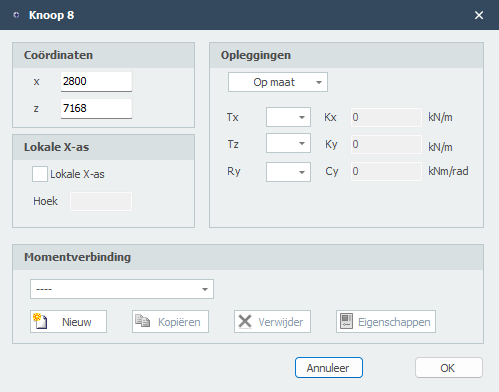
Coördinaten x
x-coördinaat
z
z-coördinaat
Beperkingen zie Opleggingen
Lokale X-as zie Lokaal assenstelsel
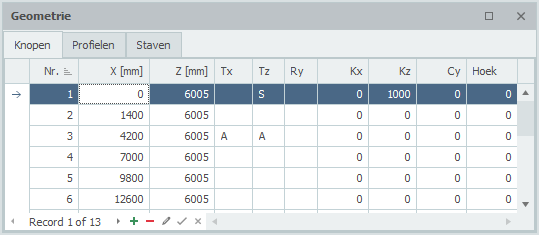
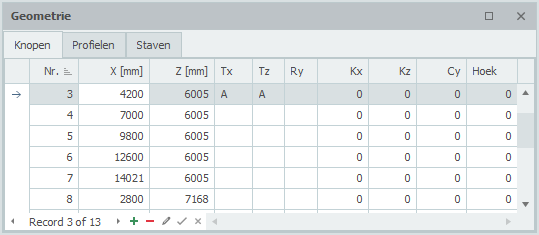
Tabel Knopen
Knopen kunnen ook in de tabel Knopen linksonder worden toegevoegd en/of gewijzigd. Het maakt niet uit. Ook kunt u tussentijds wisselen tussen grafische invoer en tabellarische invoer.
XFrame2d 2.01
Lokaal assenstelsel
In elke knoop kan een (knoop-)assenstelsel worden toegepast.
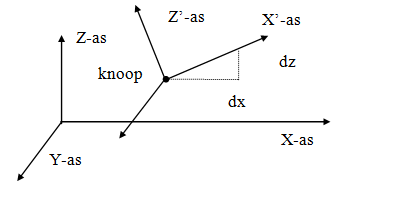
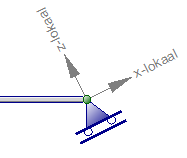
voorbeeld van een rol-oplegging onder een hoek.
De oorsprong ligt in de betreffende knoop. De richting van de X-as wordt bepaald door een hoek op te geven. (zie bovenstaande figuur). Lokale assenstelsels kunnen worden gebruikt om knoopbeperkingen (opleggingen of ‘restrains’), maar ook om knoopbelastingen en/of knoopverplaatsingen in een willekeurige richting op te geven
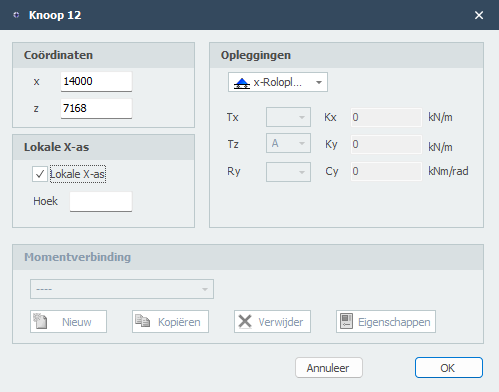
Lokale X-as
Hoek
De hoek van de lokale x-as in graden met de globale x-as. Tegengesteld aan de klokrichting is positief.
Bekijk de demo.
XFrame2d 2.01
Opleggingen
Standaard opleggingen kunnen in het grafische scherm eenvoudig worden toegevoegd. Kies in de functiebalk voor een van de onderstaande opleggingen.
Opmerking:
Dit zijn de opleggingen die het meest voorkomen in de praktijk, maar u kunt ook zelf een willekeurige (verende) oplegging samenstellen door gebruik te maken van 'A', 'P', 'N' of 'S'. Zie de onderstaande tabel.
 scharnier (Tx,Tz,Ry) ( 'A','A',' ')
 roloplegging z-richting (Tx,Tz,Ry) ( ' ','A', ' ')
 roloplegging x-richting (Tx,Tz,Ry) ( 'A',' ', ' ')
 volledige inklemming (Tx,Tz,Ry) ( 'A','A', 'A')
 verende oplegging x-richting (Tx,Tz,Ry) ( 'S',' ', ' ')
 verende oplegging z-richting (Tx,Tz,Ry) ( ' ','S', ' ')
 verende oplegging om y-as (Tx,Tz,Ry) ( ' ',' ', 'S')
In deze modus kunt u meerdere opleggingen met behulp van de linker muisknop toevoegen. Bij plaatsing ziet u rechtsonder in beeld de coördinaten. Zie de onderstaande afbeelding.
Opleggingen kunnen willekeurig worden geplaatst, in een vast raster, of op stramienlijnen.
Opleggingen zijn knopen die in een bepaalde richting worden vastgezet.
Wijzigen van een oplegging
Wijziging van een oplegging kunt u door met de linker muisknop op de knoop te klikken en vervolgens met de rechter rmuisknop te kiezen voor eigenschappen. Of nog makkelijker door te dubbel klikken op de knoop. Het onderstaande dialoogvenster wordt geopend
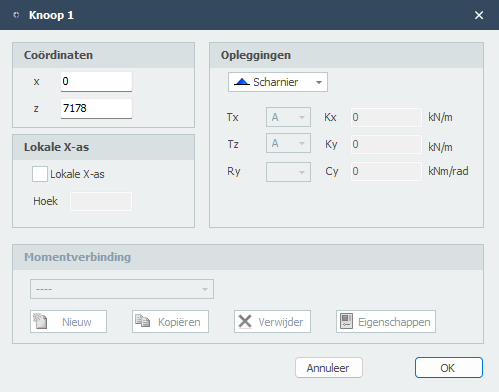
Aanduiding
Omschrijving
' '
vrij - geen beperking
'A'
Volledig beperkt (Absolute)
'P'
Beperkt voor een Positieve reactiekracht; vrij voor een negatieve reactiekracht
'N'
Beperkt voor een Negatieve reactiekracht; vrij voor een positieve reactiekracht
'S'
Verend (Spring); veerwaarde moet worden ingevoerd
Tabel Knopen
Opleggingen kunnen ook in de tabel Knopen linksonder worden toegevoegd en/of gewijzigd. Het maakt niet uit. Ook kunt u tussentijds wisselen tussen grafische invoer en tabellarische invoer.
XFrame2d 2.01
Knoopverbindingen
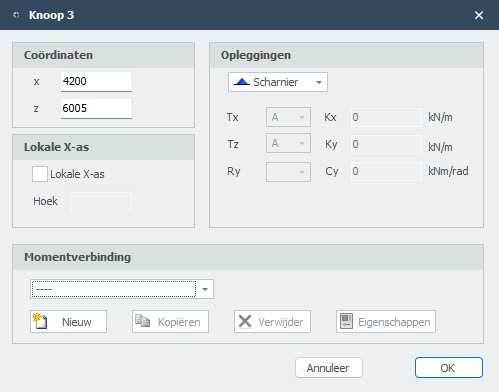
U kunt per knoop een nieuwe verbinding toevoegen. Wanneer u de verbinding hebt toegevoegd, kunt u dezelfde verbinding ook in andere knopen toepassen.


U kunt nieuwe verbindingen maken/toevoegen, verbindingen kopiëren en verwijderen. Kies Eigenschappen wanneer u de verbinding wilt wijzigen.
Zie Verbindingen
XFrame2d
Scharnier in een staaf
Het toevoegen van een scharnier in het grafische scherm is zeer eenvoudig.
Kies voor het volgende icoon in de menubalk: 
In deze modus kunt u meerdere scharnieren toevoegen met behulp van de linker muisknop. Bij het plaatsen van de knoop worden de coördinaten rechtsonder weergegeven.
Wanneer u een scharnier toevoegt, wordt een nieuwe knoop in de staaf gegenereerd en wordt de betreffende staaf automatisch opgesplitst in twee staven met een scharnierverbinding. Eventuele staafbelastingen worden ook gelijkmatig verdeeld of opgesplitst.
Op deze manier kunt u eenvoudig een gerberbalk ontwerpen.
Bekijk de demo.
XFrame2d
Verbindingen
Verbindingen
Verbindingen kunnen worden ingevoerd bij knopen.
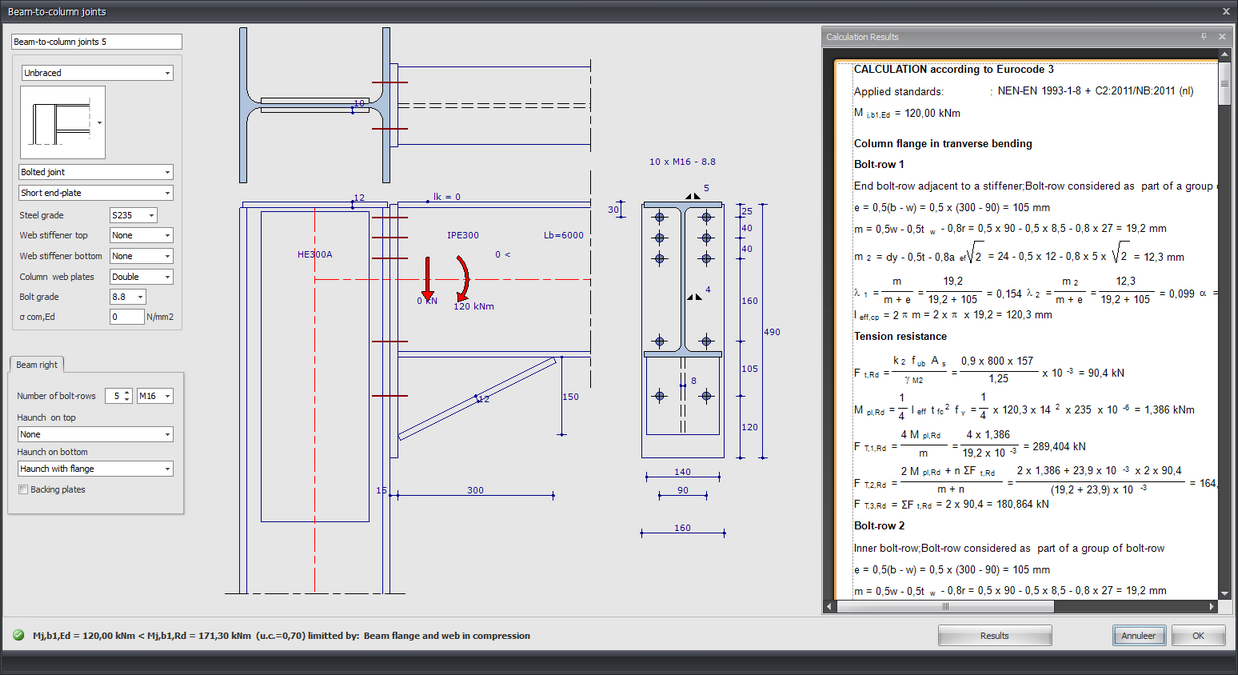
Invoer in tekening
In de tekening van de verbinding kunt u bijna alles wijzigen. U kunt alle maten wijzigen door op het getal in de maatlijn te klikken. Zie Afmetingen wijzigen.
U kunt ook de profielen, staafhoeken en belastingen in de tekening wijzigen. Dit werkt niet alleen snel maar is ook intuïtief. U zult ervaren hoe gemakkelijk en prettig het is om met XFrame2d te werken. De berekeningsresultaten kunnen rechts worden weergegeven als "gedockt" of als apart scherm op een 2e monitor. Bij elke wijziging wordt de berekening uitgevoerd en zijn de resultaten direct zichtbaar. Zo kunt u het effect van uw wijziging zien. U kunt alles in één oogopslag zien. Zowel de invoer als de berekeningsuitvoer.
Lb=4000
Lengte van de staaf (Deze waarde kan in de tekening worden gewijzigd.)
Dit is alleen belangrijk voor de classificatie van de rotatiestijfheid van de verbinding. (stijf / semi-stijf / scharnier)
0 <
Hoek van de staaf.
U stelt een aantal parameters in het onderstaande dialoogvenster in.
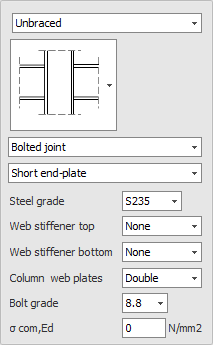
Classificatie constructie: Geschoord / Ongeschoord
Dit is alleen belangrijk voor de classificatie van de rotatiestijfheid van de verbinding. (stijf / semi-stijf / scharnier)
Type verbinding: Boutverbinding / Lasverbinding
Type kopplaat: Korte kopplaat / Verlengde kopplaat
Staalsoort
Lijfverstijving boven: Geen / Volledig / Gedeeltelijk
Lijfverstijving onder: Geen / Volledig / Gedeeltelijk
Kolomlijfplaten: Geen / Enkel / Dubbel
Boutsterkte
Sigma;com,Ed
De grootste axiale drukspanning in de kolom. Dit wordt automatisch berekend en hoeft niet te worden ingevoerd.
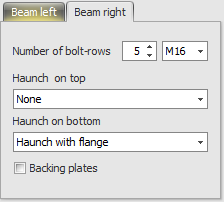
Staven symmetrisch
Bij een dubbele verbinding (links en rechts) kunt u instellen of beide gelijk (symmetrisch) zijn of niet. Dit betekent dat wanneer u één zijde wijzigt, de andere zijde automatisch mee verandert.
Aantal boutrijen
Het aantal boutrijen is minimaal 2.
Bout
Schoor boven: Geen / Schoor zonder flens / Schoor met flens
Schoor onder: Geen / Schoor zonder flens / Schoor met flens
Vulplaten
Stel- of vulplaten worden gebruikt.
XFrame2d
Berekening
Belastingafhankelijke rotatieveerstijfheid
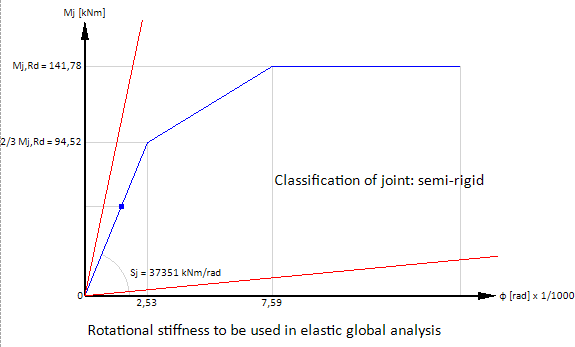
In XFrame2d wordt standaard een geometrisch niet-lineaire analyse (GNL) berekend. De krachtsverdeling wordt iteratief bepaald. De staaf-kolom momentverbindingen kunnen worden ingevoerd. De rotatiestijfheid van alle verbindingen per iteratiestap wordt bepaald. Op basis van het optredende moment in de staafverbinding bepaalt het rotatiestijfheidsdiagram van de ontworpen verbinding (zie diagram hieronder) een rotatiestijfheid of veerstijfheid die vervolgens wordt gebruikt in de volgende iteratiestap. De iteratie stopt wanneer er geen veranderingen meer zijn in de krachtsverdeling.
In XFrame2d wordt daarom voor alle momentverbindingen een belastingafhankelijke rotatieveerstijfheid in rekening gebracht. Dit geeft natuurlijk het meest nauwkeurige resultaat en leidt tot een economisch optimaal ontwerp.
Bij kleine momenten (onder 2/3 Mj,Rd) wordt de initiële rotatiestijfheid Sj,ini berekend. Bij grotere momenten met de rotatiestijfheid Sj corresponderend met het buigend moment Mj,Ed. Het trilineaire rotatiestijfheidsdiagram wordt gebruikt. Zie het diagram hieronder.
XFrame2d
Staven
Staven
In het grafische scherm kunnen staven eenvoudig worden toegevoegd door de staven te tekenen. Kies in de functiebalk voor  In deze modus kunt u 2 knopen selecteren waartussen de staaf zich bevindt.
-
Kies de beginknoop met linker muisknop. Selecteer een bestaande knoop of plaats een nieuwe knoop.
-
Kies de eindknoop met linker muisknop. Selecteer een bestaande knoop of plaats een nieuwe knoop.
Na selectie van de 2de knoop, de eindknoop verschijnt het onderstaande dialoogvenster.
Staven worden als een 'polylijn' getekend, precies zoals dat ook in AutoCAD gebeurt. De beginknoop van een volgende staaf is de eindknoop van de laatst getekende staaf.
Het kan wel, maar u hoeft niet eerst knopen te tekenen. U kunt ook direct met het tekenen van de staven beginnen; bij het tekenen van de staven worden de knopen automatisch aangemaakt en toegevoegd.
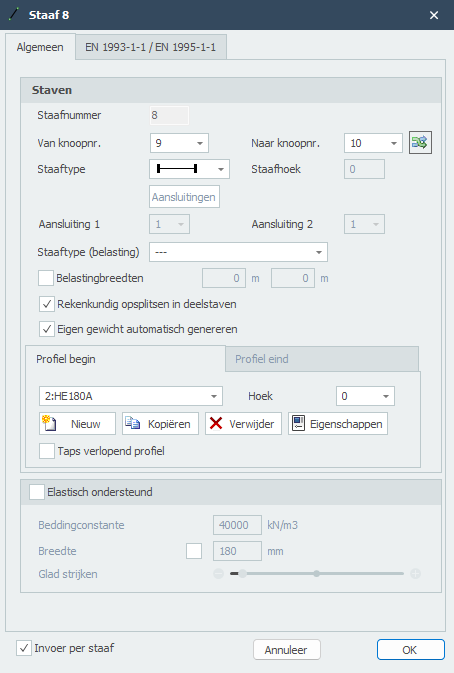
Bij de eerste staaf verschijnt het onderstaande dialoogvenster, waarin u onder andere de staafaansluitingen en het profiel van de staaf kunt instellen. Gebruik de esc-toets om het tekenen van staven te beëindigen.
Terwijl u tekent verschijnen ook hulplijnen (horizontaal en verticaal) naar eerder ingevoerde knopen. Vaak is het zo dat de knoop waarnaar u de staaf wilt tekenen dezelfde x- of z-maat heeft als de vorige. U kunt op die manier snel knopen plaatsen. Vanzelfsprekend kunt u de coördinaten achteraf altijd aanpassen, getalsmatig of door de knoop te verplaatsen.
Terwijl u een nieuwe staaf tekent verschijnt parallel aan de staaflijn een maatlijn. U kunt, vrijwel net als in AutoCAD, de afstanden direct ook getalsmatig invoeren door het getal / de getallen in te typen op uw toetsenbord. Er zijn 3 mogelijkheden om een staaf te tekenen:
1.Tekenen van een staaf met een bekende lengte. Het getal verschijnt in de maatlijn. Met de enter-toets wordt de invoer afgesloten en de staaf met die lengte toegevoegd.
2.Tekenen van een staaf met relatieve cartesische coördinaten (dx, dz). Eerst voert u de afstand in x-richting in. Het getal verschijnt in de maatlijn. Vervolgens typt u een punt-komma ";" in en de afstand in z-richting. Het getal verschijnt in een 2de invoerveld. Met de enter-toets wordt de invoer afgesloten en de staaf toegevoegd.
3.Tekenen van een staaf met relatieve polaire coördinaten (R, hoek) Eerst voert u de straal R in. Het getal verschijnt in de maatlijn. Vervolgens typt u een kleiner-dan-teken "<" in en de hoek in xz-richting. Het getal verschijnt in een 2de invoerveld. Met de enter-toets wordt de invoer afgesloten en de staaf toegevoegd.
- Invoer van relatieve cartesische coördinaten (dx, dz) of absolute cartesische coördinaten (x, z).
Druk op de spatiebalk en het onderstaande dialoogvenster verschijnt. Hierin kunt u relatieve coördinaten of absolute coördinaten direct invoeren.
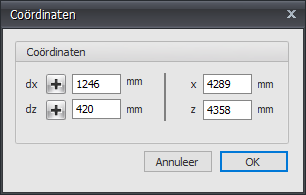
Op die manier kunt u razendsnel uw constructie invoeren.
bekijk de demo.
Vanzelfsprekend kunt u de staven en knopen die u hebt toegevoegd achteraf wijzigen.
Wijzigen van een staaf
Wijziging van een staaf kunt u door met de linker muisknop op de staaf te klikken en vervolgens met de rechter muisknop te kiezen voor eigenschappen. Of nog makkelijker door te dubbel klikken op de staaf. Het onderstaande dialoogvenster wordt geopend
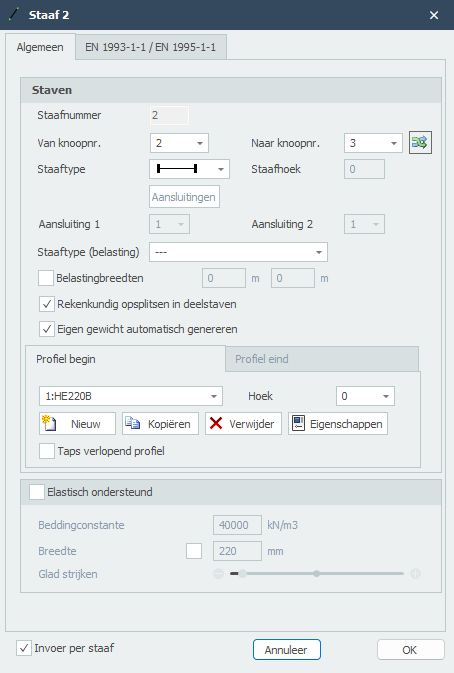
Staafnummer
Het staafnummer wordt automatisch gegenereerd.
Van knoopnr.
Het nummer van de beginknoop
Tot knoopnr.
Het nummer van de eindknoop
Staafhoek
Dit is de hoek in graden met de globale x-as. Tegengesteld aan de klokrichting is positief.
Staaftype
Door middel van het staaftype wordt opgegeven of de staaf in de betreffende knoop scharnierend of momentvast verbonden is aan deze knoop.
aanduiding
omschrijving

beide zijden 'stijf' ingeklemd (default)

begin 'stijf' ingeklemd;eind scharnierend

begin scharnierend;eind 'stijf' ingeklemd

beide zijden scharnierend

beide zijden 'stijf' ingeklemd ALLEEN trek

begin 'stijf' ingeklemd;eind scharnierend ALLEEN trek

begin scharnierend;eind 'stijf' ingeklemd ALLEEN trek

beide zijden scharnierend ALLEEN trek

beide zijden 'stijf' ingeklemd ALLEEN druk

begin 'stijf' ingeklemd;eind scharnierend ALLEEN druk

begin scharnierend;eind 'stijf' ingeklemd ALLEEN druk

beide zijden scharnierend ALLEEN druk

beide zijden 'verend' ingeklemd

begin 'verend' ingeklemd;eind scharnierend

begin scharnierend;eind 'verend' ingeklemd

beide zijden scharnierend

Specifiek en alleen voor de verende staafaansluitingen moeten de veergegevens worden opgegeven.
Staaftype (belasting)
Dit type wordt alleen gebruikt bij de belastinggenerator. Op basis hiervan worden sneeuw- en windbelastingen gegenereerd. U hebt de keus tussen "vloer, linker gevel, rechter gevel, dak, overstek, wand/borstwering". Zie Belastinggenerator.
Belastingbreedten
Per staaf kunt u de B - Belastingbreedte spant "overrulen" door een afwijkende belastingbreedte aan het begin en aan het einde van de staaf op te geven. Zie Belastinggenerator.
Rekenkundig opsplitsen in deelstaven
Instelling of de staaf voor de bepaling van de krachtsverdeling (raamwerkberekening) rekenkundig moet worden gesplitst in deelstaven wanneer er knopen op de staaf worden gevonden. Standaard staat deze instelling aan.
Profielnaam begin/eind
Hier kiest u de profielnaam.
Hoek
De hoek van het profiel. Dat is de hoek t.o.v. het lokale assenstelsel. Normaal is dat 0 graden. Wanneer u bijvoorbeeld een kolom gedraaid wilt invoeren (dus belast over zijn zwakke as), voert u hier 90 graden in.
U kunt ook nieuwe profielen aanmaken/toevoegen, profielen kopiëren en profielen verwijderen. Kies voor Eigenschappen wanneer u de profielgegevens wilt wijzigen en/of een ander standaard profieltype wilt selecteren uit de profielendatabase.
Taps verlopend profiel
U kunt eventueel een taps verlopend profiel invoeren. Het tabblad "Profielnaam eind" wordt geactiveerd. Hier kunt u het 2de profiel aan het einde van de staaf invoeren. Let op! De basisvorm van het profiel (H-, U-, L-vorm, enz.) moet wel overeenkomen met die van het profiel aan het begin van de staaf.
Voor berekeningsachtergrond. Zie Taps verlopend.
Elastisch ondersteund
Dit geeft de mogelijkheid om een staaf elastisch te ondersteunen. De bedding wordt geschematiseerd als een reeks veren die alleen positieve reacties kunnen opnemen. Eventueel "loskomen" is dan ook voorzien. De veerafstand kan met Glad strijken worden beïnvloed. De beddingsconstante wordt automatisch omgezet naar veren met de juiste veerwaarde.
Beddingsconstante
De beddingsconstante K in kN/m3. De default waarde is 10.000 kN/m3.
Globale waarden van de beddingsconstante K van diverse type ondergronden:
Type ondergrond
Beddingsconstante [kN/m3]
goed gegradeerd grind en grind/zandmengsels, met weinig of geen fijn materiaal
80000 - 130000
slecht gegradeerd grind, met weinig of geen fijn materiaal
80000 - 130000
grind/zand/kleimengsels
50000 - 130000
goed gegradeerd zand en grindig zand, met weinig of geen fijn materiaal
50000 - 100000
slecht gegradeerd zand, met weinig of geen fijn materiaal
40000 - 100000
zand/kleimengsels
30000 - 80000
zeer fijn zand, lemig zand
30000 - 50000
vaste klei
10000 - 30000
slappe klei en veen
0 - 10000
Breedte
De breedte van de ondersteuning. Standaard wordt hier de breedte van het gebruikte profiel genomen, maar het is mogelijk om een andere breedte in te voeren. De breedte is van belang om de veerwaarde van de veren te bepalen.
Glad strijken
Standaard wordt de hoh-afstand van de veren gelijk genomen aan 1x de profielhoogte. Het is mogelijk om dit te variëren van 0,5x tot 5x de profielhoogte. De hoh-afstand is van belang om de veerwaarde van de veren te bepalen.
Invoer per staaf
Wanneer dit is ingeschakeld wordt het bovenstaande dialoogvenster getoond telkens wanneer een nieuwe staaf wordt getekend. Dit geeft u bijvoorbeeld de mogelijkheid om per nieuwe staaf van profiel te wisselen.
EN 1993-1-1
Specifiek en alleen voor de toetsing volgens Eurocode 3: NEN-EN 1993-1-1 kunnen gegevens worden ingevoerd.
Kniklengte
De kniklengte uit het vlak. De toetsing volgens Eurocode 3: NEN-EN 1993-1-1 is gebaseerd op een geometrisch niet lineaire krachtsverdeling. Dat betekent dat knik van de staven in het vlak van het raamwerken impliciet is voorzien. Per belastingcombinatie wordt iteratief inwendig eenwicht bepaald.
Knik uit het vlak van het raamwerk zal wel moeten worden beoordeeld. Default wordt de kniklengte uit het vlak gelijk genomen aan de staaflengte. In die gevallen dat dit afwijkt kan per staaf een afwijkende kniklengte worden ingevoerd.
Aantal kipsteunen
Alleen relevant voor de toetsing van de kipstabiliteit: Het aantal kipsteunen is default 2. In die gevallen dat er meer dan 2 kipsteunen worden toegepast kan per staaf een afwijkend aantal worden ingevoerd.
Staafgroep
Specifiek en alleen voor de toetsing van de kipstabiliteit kan een staafgroep worden ingevoerd. XFrame2d dedecteert automatisch welke staven hiervoor in aanmerking komen. Alleen die staven die in het verlengde van de beschouwde staaf liggen, momentvast zijn verbonden en van hetzelfde profiel zijn, worden zichtbaar, U kunt aanvinken welke staven dat zijn.
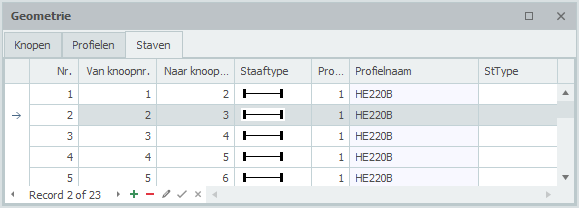
Tabel Staven
Staven kunnen ook in de tabel Staven linksonder worden toegevoegd en/of gewijzigd. Het maakt niet uit. Ook kunt u tussentijds wisselen tussen grafische invoer en tabellarische invoer.
XFrame2d 2.01
Verende staafaansluiting
Het onderstaande dialoogvenster wordt geopend.
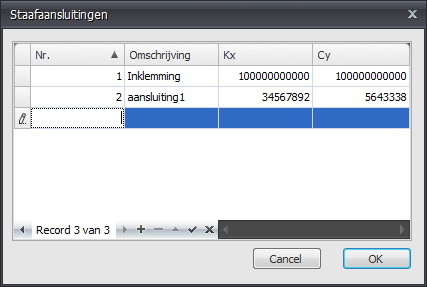
Hier kunt u de veerkarakteristieken van de verende aansluiting invoeren (bijvoorbeeld een semi-stijve momentverbinding).
Nr.
Het nummer van de aansluiting. Dit nummer wordt automatisch aangemaakt. Vanuit de staven wordt gerefereerd naar dit nummer. Op die manier kan dezelfde verbinding meerdere keren worden toegepast. De veerkarakteristieken worden eenmalig gedefinieerd. Achteraf bijstellen van de veerwaarden is dan ook zeer eenvoudig.
Omschrijving
Vrij in te voeren tekst.
Kx
De rekveerwaarde in N/mm
Cy
de momentveerwaarde in Nm/rad
XFrame2d 2.01
Eurocode
EN 1993-1-1 / EN 1995-1-1
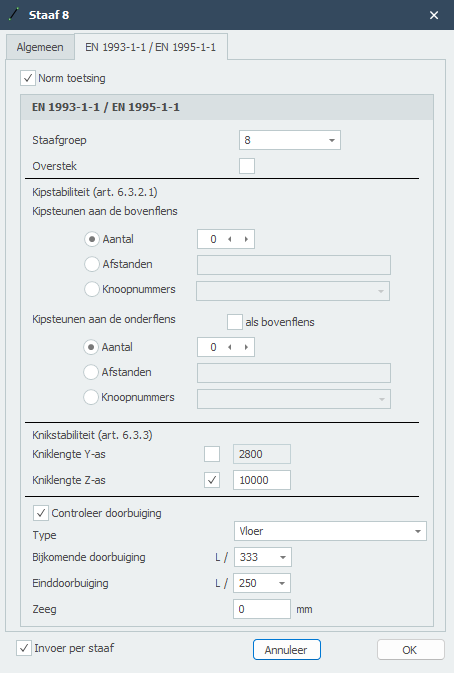
Specifiek en alleen voor de toetsing volgens Eurocode 3: NEN-EN 1993-1-1 respectievelijk Eurocode 5: NEN-EN 1995-1-1 kunnen gegevens worden ingevoerd.
Staafgroep
Specifiek en alleen voor de toetsing op kipstabiliteit kan hier een staafgroep worden ingevoerd. XFrame2d detecteert automatisch voor welke staven dit van toepassing is. Alleen de staven die door een volledig stijve verbinding aan deze specifieke staaf zijn verbonden en hetzelfde profiel hebben, worden getoond. U kunt selecteren welke staven moeten worden meegenomen. Voor deze groep voert u vervolgens de lengte tussen de zijdelingse steunen en de kniklengte uit het vlak in.
Uitkragend
Instelling of de staaf als uitkragend moet worden beschouwd.
Kipstabiliteit
Aantal zijdelingse steunen / afstanden tussen zijdelingse steunen
Dit is alleen relevant voor de toetsing op kipstabiliteit. U kunt de zijdelingse steunen voor de boven- en onderflens invoeren.
Er zijn 3 mogelijkheden:
-
Aantal: Het aantal zijdelingse steunen. Dit zijn de extra (zijdelingse steunen) tussen de opleggingen verdeeld over de lengte van de staaf(groep).
-
Afstanden: De lengtes tussen de zijdelingse steunen vanaf het begin van de staaf(groep). De syntax is ''lengte1 lengte2 aantalxlengte3.. etc''.
Bijvoorbeeld 3000 3x2200 2800
- Knoopnummers: Selecteren van de knoopnummers die in de staafgroep zitten.
Kniklengtes Y-as en Z-as
De toetsing volgens Eurocode 3: EN 1993-1-1 is gebaseerd op een geometrisch niet-lineaire analyse. Dit betekent dat de knik van de staven impliciet in de analyse is opgenomen. Voor elke belastingcombinatie wordt de interne stabiliteit iteratief bepaald. Standaard is de kniklengte om de y-as gelijk aan de staaflengte. De kniklengte om de z-as is gelijk aan de grootste kiplengte. U kunt ook andere waarden invoeren voor beide kniklengtes. Zie ook Knik.
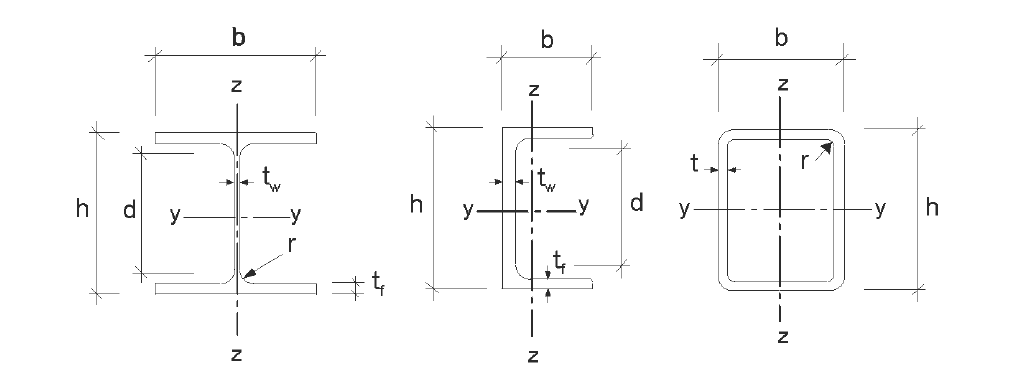
Let op: Ongeacht of het profiel is geroteerd ten opzichte van het lokale assenstelsel, is de Y-as de sterke as en de Z-as de zwakke as analoog aan de Eurocode. (Zie hieronder.) In alle toetsingen worden alle staafkrachten getransformeerd naar dit assenstelsel.
Doorbuigingscontrole
Instelling of doorbuiging moet worden gecontroleerd.
Type
Dit beïnvloedt de eis voor bijkomende doorbuiging.
Bijkomende doorbuiging
Eis voor bijkomende doorbuiging.
Einddoorbuiging
Eis voor einddoorbuiging.
Zeeg
De grootte van de zeeg in mm.
XFrame2d
Profielen
Profielen
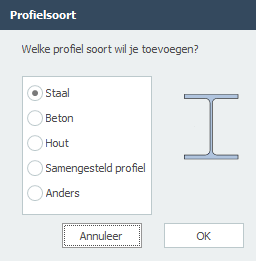
XFrame2d
Staal
Staal
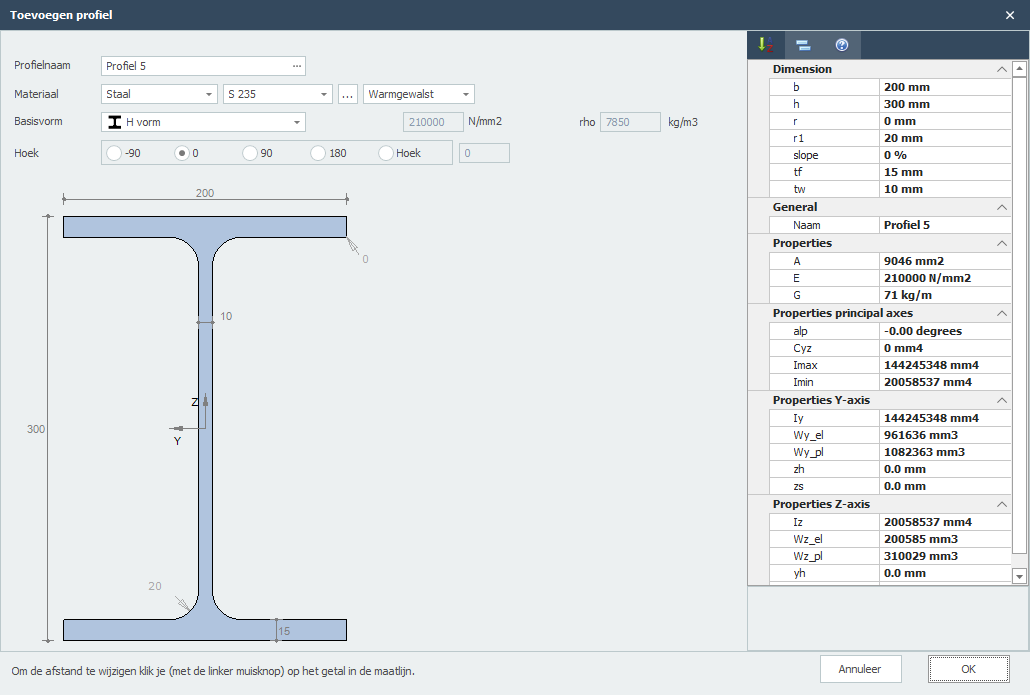
Profielnaam
Beschrijving van het profiel.
Let op: U kunt hier ook direct de standaard profielnaam invoeren. Het programma zoekt het standaardprofiel op in de database. Bijvoorbeeld hea200 of HE200a.
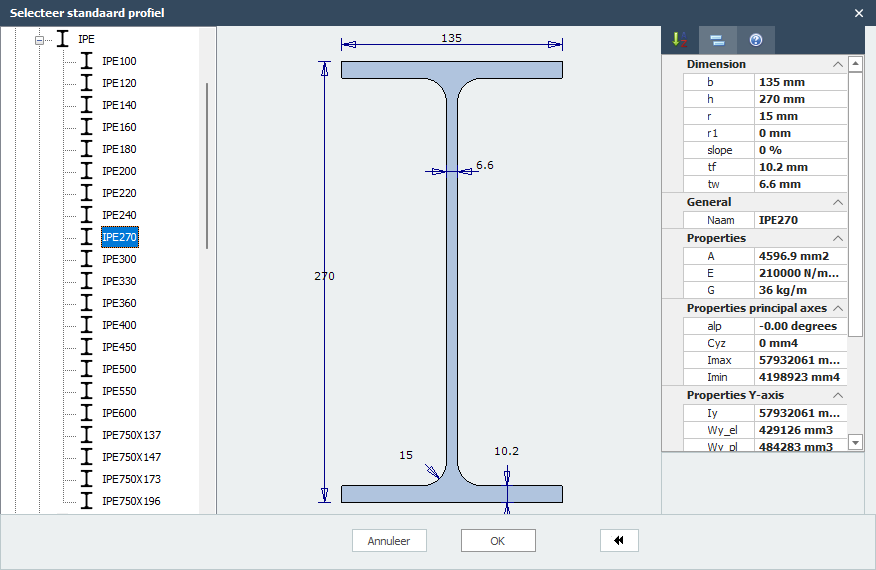
De module heeft een uitgebreide bibliotheek met standaardprofielen van meer dan 2700 profielen waaruit u kunt kiezen. Klik op de punten ... Het onderstaande dialoogvenster wordt zichtbaar.
Materiaal
Naam van het materiaal.
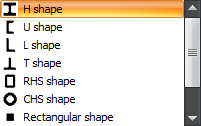
Basisvorm
Er zijn een aantal basisvormen.
Let op: U kunt alle afmetingen wijzigen door op het getal in de maatlijn te klikken. Op deze manier kunt u elk profiel invoeren dat niet in onze database staat. Dit geeft u flexibiliteit.
E
De elasticiteitsmodulus.
Hoek
Hoek van het profiel in het y-z assenstelsel.
XFrame2d
Hout
Hout
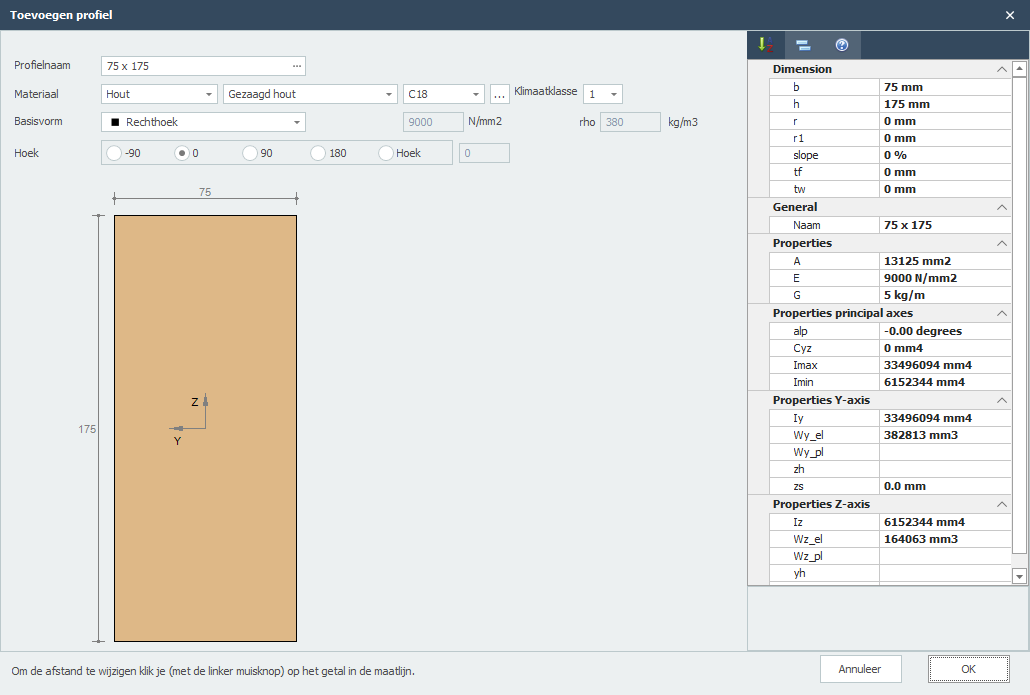
Profielnaam
Beschrijving van het profiel.
Let op: U kunt hier ook direct de standaard profielnaam invoeren. Het programma zoekt het standaardprofiel op in de database. Bijvoorbeeld 85 x 175.
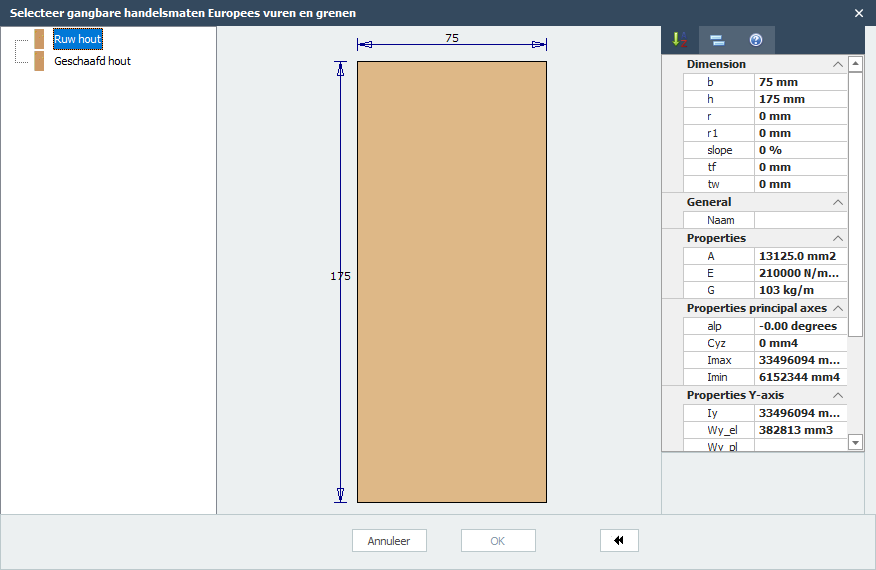
De module heeft een uitgebreide bibliotheek met standaardprofielen waaruit u kunt kiezen. Klik op de punten ... Het onderstaande dialoogvenster wordt zichtbaar.
Materiaal
Naam van het materiaal.
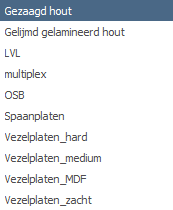
Type hout
Houtklasse
C14, C16, C18, C20, enz.
Klimaatklasse
1, 2, of 3.
Basisvorm
Er zijn een aantal basisvormen.
Let op: U kunt alle afmetingen wijzigen door op het getal in de maatlijn te klikken. Op deze manier kunt u elk profiel invoeren dat niet in onze database staat. Dit geeft u flexibiliteit.
E
De elasticiteitsmodulus.
Hoek
Hoek van het profiel in het y-z assenstelsel.
XFrame2d
Samengestelde doorsnede
Samengestelde doorsnede
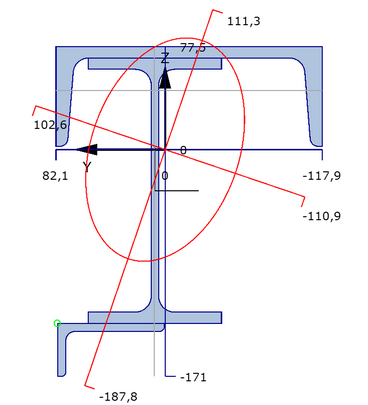
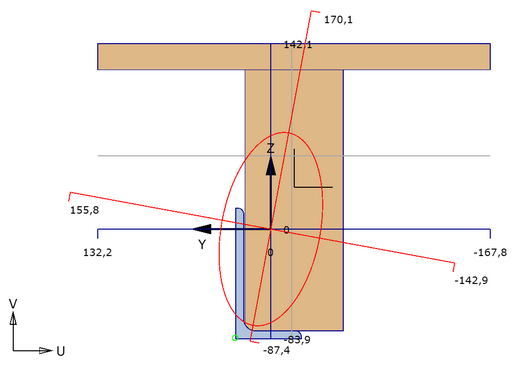
Met deze module kunt u elke doorsnede samenstellen.
XFrame2d
Invoer
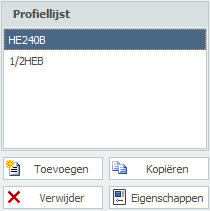
U kunt hier profielen Toevoegen, Kopiëren en Verwijderen. Met Eigenschappen kunt u uw profiel wijzigen of de profielafmetingen aanpassen.
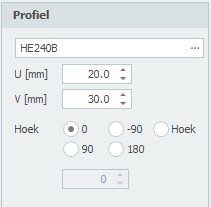
Profielnaam
Voer de profielnaam in of selecteer uit onze profielendatabase.
Speciale invoer:
1) Halve H syntax: "1/2 profielnaam [ - min afmeting ]"
Voorbeeld: 1/2IPE300 of 1/2HE650B-5
2) Rechthoekig: syntax: "S breedte x hoogte" of "F breedte x hoogte"
Voorbeeld: S200x12
3) Gat: syntax: "G breedte x hoogte" of "H breedte x hoogte"
Voorbeeld: H50x25
4) Rond: syntax: "R diameter"
Voorbeeld: R50
5) Buis(segment): syntax: "R diameter x dikte [ / hoek1 / hoek2 ]"
Voorbeeld: R500x12 of R500x12/0/180
6) Driehoek: syntax: "D breedte x hoogte" of "T breedte x hoogte"
Voorbeeld: T50x60
U
Coördinaat u in mm
V
Coördinaat v in mm
Hoek
Hoek in graden
XFrame2d
Grafische invoer
Grafische weergave van de samengestelde doorsnede, met:
- Dwarsdoorsnede van alle gebruikte profielen. De geselecteerde doorsnede wordt in een andere kleur weergegeven.
- Assenstelsel
- Zwaartepunt
- Hoofdassen
- Afstanden van zwaartepunt naar alle grootste afmetingen
- Weergave van traagheidsstraal
- Weergave van plastische neutrale lijn
Rechtermuisknop contextmenu
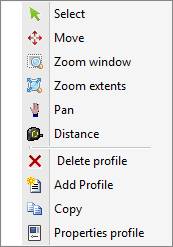
Menu

Selecteren
U kunt het actieve profiel wijzigen door met de linker muisknop binnen de profielgrenzen te klikken.
Verplaatsen
Profielen kunnen worden verplaatst. Er is een automatische snap naar bekende punten, wat het verplaatsen van profielen vrij eenvoudig maakt. U kunt ook de coördinaten wijzigen.
Zoomvenster
Met deze functie kunt u inzoomen op een deel van uw constructie. U kunt dit gebruiken om de grafische invoer te vergemakkelijken.
Zoom alles
Met zoom alles wordt de totale samengestelde doorsnede op volledig scherm getoond.
Verschuiven
Met verschuiven kunt u een ingezoomd deel van uw tekening slepen/verplaatsen.
Afstand
In deze modus kunnen afstanden worden gemeten.
XFrame2d
Demo's
Korte demo's die u in staat stellen om direct aan de slag te gaan.
(De onderstaande invoerbestanden staan ook in de map examples.)
Start demo1
Profiel HEB220 met uitstekende strip 180x15 aan de onderflens
Start demo2
IFB-profiel IFB 320-500x20+HE 650 B
Start demo3
Randbalk IPE300 + UNP280 + L120x80x8
Start demo4
Profiel HEB300 met verzwakte onderflens
Start demo5
THQ-profiel THQ 200x5 - 190x20 - 400x10
Belastingen
Belastingen

Alle belastingen (knoopbelasting, staafbelasting of knoopverplaatsingen) worden per belastinggeval ingevoerd.
XFrame2d
Belastinggenerator
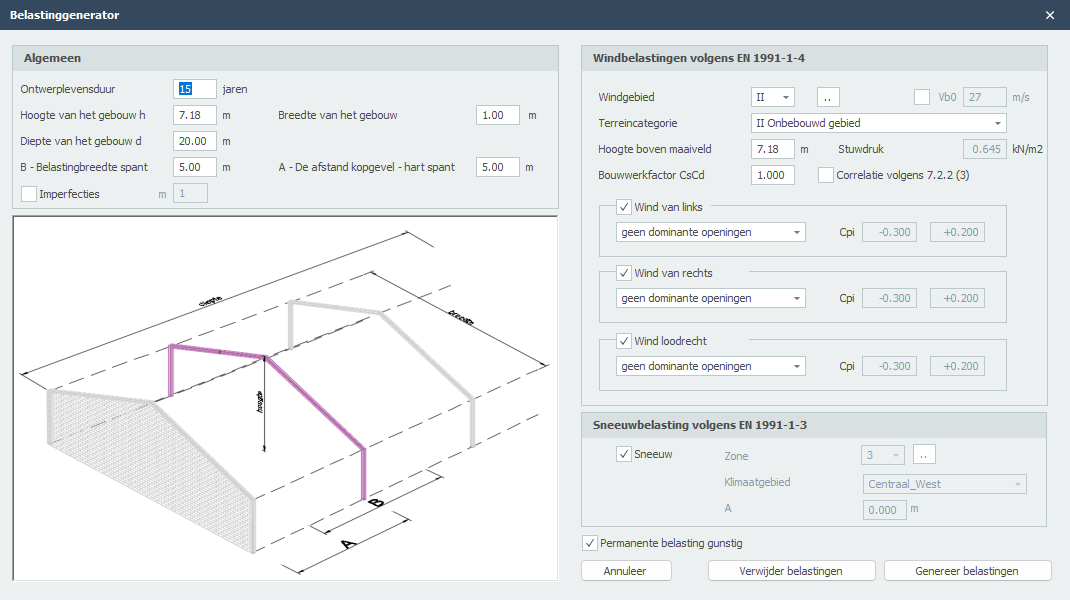
Werken met de belastinggenerator.
Met de belastinggenerator genereert u de sneeuw- en windbelastingen inclusief alle belastingcombinaties in een mum van tijd. Vooral de windbelastingen volgens de Eurocode zijn uitgebreid en daarom arbeidsintensief. De belastinggenerator neemt dit werk uit handen. De uitvoer toont specifiek hoe de windbelastingen op de staven worden bepaald en berekend.
Let op!
Voordat u met de belastinggenerator kunt werken, moet u het juiste staaftype (belasting) per staaf selecteren. U heeft de keuze tussen ''vloer, linker verticale wand, rechter verticale wand, dak, overstek, wand/borstwering''. Op basis hiervan worden de sneeuw- en windbelastingen berekend. Zie Staven.
Algemeen
De afmetingen van het gebouw en de plaats van het centrale spant in het gebouw.
Ontwerplevensduur
De ontwerplevensduur van het gebouw in jaren.
Hoogte van het gebouw
De hoogte van het gebouw in meters. Deze waarde wordt gegenereerd. De hoogte en de diepte van het gebouw zijn bepalend voor de winddrukcoëfficiënten.
Diepte van het gebouw
De totale diepte van het gebouw (gemeten loodrecht op het spantvlak) in meters. De hoogte en de diepte van het gebouw zijn bepalend voor de winddrukcoëfficiënten.
Breedte van het gebouw
De totale breedte van het gebouw (gemeten in het spantvlak) in meters. Deze waarde wordt gegenereerd. De hoogte en de breedte van het gebouw zijn bepalend voor de windstuwkracht.
B- Lastbreedte spant
De breedte (gemeten loodrecht op het spantvlak) in meters die het spant moet dragen.
A- afstand kopgevel - hart spant
De afstand kopgevel - hart spant (gemeten loodrecht op het spantvlak) in meters. Deze afstand is belangrijk voor het bepalen van de winddrukcoëfficiënten. Er wordt een interpolatie uitgevoerd tussen de winddrukcoëfficiënten in verschillende zones van het dak.
Sneeuwbelastingen volgens EN-1991-1-3
Selecteer of de sneeuwbelasting moet worden gegenereerd of niet.
Windbelastingen volgens EN-1991-1-4
Windzone
Afhankelijk van de locatie van de constructie wordt de windzone gekozen. Deze waarde verschilt per land.
Terreincategorie
Op basis van lokale omstandigheden wordt de terreincategorie gekozen.
Hoogte boven terrein
De hoogte van het gebouw boven het terrein in meters.
Stuwdruk
Berekende stuwdruk.
Constructiefactor
Constructiefactor volgens 6.3.
Correlatie
Instelling of winddrukken op gevels moeten worden gereduceerd met 0,85. Bijv. volgens Nederlandse NAD art. 7.2.2(3).
Wind van links
Selecteer of de wind van links naar rechts moet worden gegenereerd.
Wind van rechts
Selecteer of de wind van rechts naar links moet worden gegenereerd.
Wind loodrecht
Selecteer of de wind loodrecht moet worden gegenereerd. (loodrecht op het spantvlak)
De inwendige onder- en overdruk is afhankelijk van de grootte van de openingen in de gevels.
Belastingen genereren
Alle belastingsgevallen en belastingcombinaties voor sneeuw en wind worden automatisch aangemaakt. U kunt deze belastingen ook wijzigen en uitbreiden.
XFrame2d
Belastingsgevallen
Belastingsgevallen

Invoeren van belastingsgevallen.
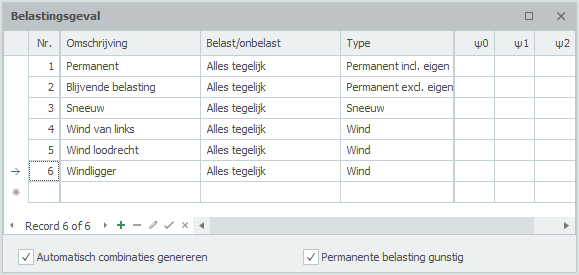
Nr.
Dit nummer wordt automatisch gegenereerd. U kunt dit nummer niet wijzigen.
Omschrijving
Vrij in te voeren omschrijving van het belastingsgeval.
Type
Het type belasting (permanent of veranderlijk). Afhankelijk van het type belasting worden volgens de Eurocode de standaard combinatiefactoren psi0, psi1 en psi2 bepaald.
Deze combinatiefactoren worden bij het opgeven van de belastingcombinaties als standaard aangeboden. Deze waarden kunnen echter worden aangepast.
Standaard worden er automatisch twee belastingsgevallen gegenereerd: permanent en veranderlijk.
Automatisch combinaties genereren
Wanneer u belastingsgevallen invoert of wijzigt, worden de belastingcombinaties automatisch gegenereerd. U kunt deze combinaties uiteraard ook wijzigen en uitbreiden.
XFrame2d 2.01
Volgorde belastingsgevallen
Met een klik op de rechter muisknop wordt het onderstaande contextmenu geopend. Met deze functies kunt u eenvoudig de volgorde van de belastingsgevallen aanpassen en/of belastingsgevallen invoegen.
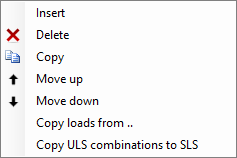
Invoegen
Er wordt een nieuw belastingsgeval aangemaakt en ingevoegd boven het huidige belastingsgeval.
Verwijderen
Het belastingsgeval wordt verwijderd, inclusief alle belastingen.
Kopiëren
Het belastingsgeval wordt gekopieerd, inclusief alle belastingen.
Omhoog / Omlaag
Een belasting kan een regel omhoog en omlaag worden verplaatst.
XFrame2d
Belastingsgeval kopiëren
Met de rechter muisknop wordt het volgende contextmenu geopend.
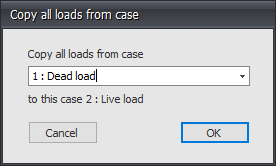
Belastingen kopiëren van..
Elke belasting van een reeds bestaand belastingsgeval kan worden gekopieerd. Het onderstaande dialoogvenster wordt geopend. Hierin kiest u het belastingsgeval waarvan u de belastingen wilt kopiëren.
XFrame2d
Belastingcombinaties
Belastingcombinaties
Invoer van belastingcombinaties
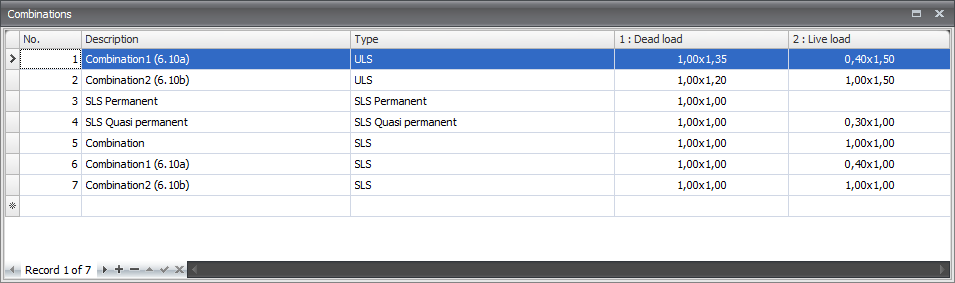
Nr.
Dit nummer wordt automatisch gegenereerd. U kunt dit nummer niet wijzigen.
Beschrijving
Vrij tekstveld om de belastingcombinatie te beschrijven.
Type
Het type belasting (UGT - uiterste grenstoestand, UGT-brand, BGT-bruikbaarheidsgrenstoestand, quasi-permanent). Afhankelijk van het type combinatie worden standaardwaarden voor de combinatiefactoren (psi) en de belastingfactor (gamma) aangeboden volgens de Eurocode. Maar deze waarden kunnen worden aangepast.
Kolommen met belastingsgevallen
Voor alle belastingsgevallen worden kolommen aangemaakt. Op deze manier verschijnt een tabel waarin alle combinaties worden getoond. Elke cel bevat 2 waarden in de syntax: combinatiefactor x belastingfactor. U kunt ook één waarde invoeren en dat is de belastingfactor. In dat geval wordt de combinatiefactor ingesteld op 1,00.
Wanneer u op de cel klikt, verschijnt het volgende dialoogvenster. Hier kunt u beide waarden aanpassen.

Voor de combinatiefactor en de belastingfactor worden keuzelijsten aangeboden met de standaardwaarden waaruit u kunt kiezen. U kunt ook een eigen waarde invoeren. Dit geeft veel vrijheid. Als u bijvoorbeeld één van de waarden als nul neemt, is het product van de twee waarden uiteraard ook nul. In dat geval wordt de cel 'leeg' getoond. Dit is alleen voor de duidelijkheid.
Standaard worden drie belastingcombinaties gegenereerd. (UGT (6.10a), UGT (6.10b) en BGT)
XFrame2d
Volgorde belastingcombinaties
Met de rechter muisknop wordt het volgende contextmenu geopend. Met deze functies kunt u eenvoudig de volgorde van de belastingcombinaties aanpassen, of nieuwe belastingcombinaties invoegen.
Invoegen
Er wordt een nieuwe belastingcombinatie aangemaakt en ingevoegd boven het huidige belastingsgeval.
Verwijderen
De belastingcombinatie wordt verwijderd.
Kopiëren
De belastingcombinatie wordt gekopieerd.
Omhoog / Omlaag
Een belastingcombinatie kan een regel omhoog en omlaag worden verplaatst.
Kopieer UGT-combinatie naar BGT
Elke belastingcombinatie van het type UGT wordt gekopieerd als type BGT. De belastingfactoren worden ingesteld op 1.
XFrame2d
Staafbelastingen


Staafbelastingen worden in een lokaal Staaf-assenstelsel opgegeven. Zie Tekenafspraak.
Het onderstaande dialoogvenster wordt geopend.
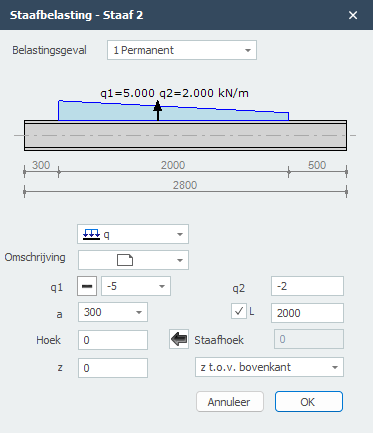
Belastingsgeval
Keuze van het belastingsgeval. Hier kunt u ook direct een nieuw belastingsgeval aanmaken.
Type belasting
Kies het type belasting dat u wilt toevoegen.
type
omschrijving

gelijkmatig verdeelde belasting of verlopende belasting
puntlast - F-belasting
moment - M-belasting
q1
De grootte van de belasting. Voor q-belasting de grootte van de belasting aan het begin in kN/m. Voor een puntlast de grootte van de belasting in kN, Voor een moment de grootte van de belasting in kNm.
Met 
 kunt u het teken van de belasting eenvoudig veranderen. Standaard staat het teken op . Dat is het meest voorkomend.
q2
Alleen voor q-belasting de grootte van de belasting aan het eind kN/m.
a
De afstand in mm waar de belasting begint, gerekend vanaf de beginknoop van de staaf.
L
Alleen voor q-belasting de lengte van de belasting. Standaard loopt de belasting tot aan het einde van de staaf.
hoek
Alleen voor de q- en F-belasting. De hoek in graden met de normaal. Tegengesteld aan de klokrichting is positief.
Staafhoek
De hoek in graden met de globale x-as. Tegengesteld aan de klokrichting is positief. Met  kunt u de hoek van de vorige staaf overnemen.
z
De afstand in z-richting in mm t.o.v. de referentielijn. De referentielijn is instelbaar: 'z- t.o.v. bovenkant' / 'z- t.o.v. zwaartelijn' / 'z- t.o.v. onderkant'.
Deze afstand is alleen relevant voor de toetsing van de kipstabiliteit.
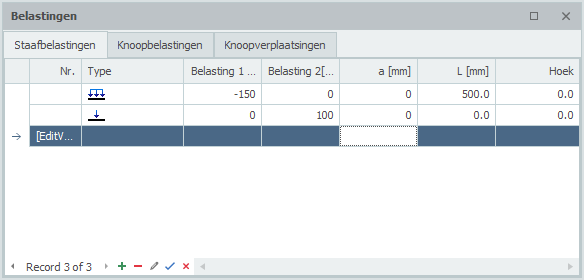
Tabel
Staafbelastingen kunnen ook in de tabel worden toegevoegd en/of gewijzigd. Het maakt niet uit. U kunt ook tussentijds wisselen tussen grafische invoer en tabellarische invoer.
XFrame2d 2.01
Knoopbelastingen

Knoopbelastingen worden in een Knoop-assenstelsel opgegeven. Zie Tekenafspraak.
Het onderstaande dialoogvenster wordt geopend.
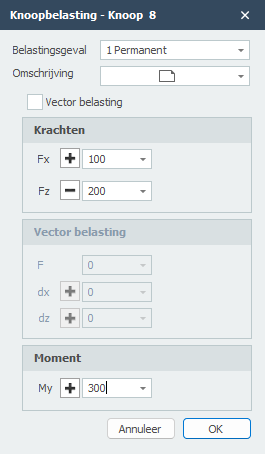
Belastingsgeval
Keuze van het belastingsgeval. Hier kunt u ook direct een nieuw belastingsgeval aanmaken.
Vector belasting
Instelling of u de belasting als vector in een bepaalde richting wilt invoeren.
De knoopbelasting wordt standaard in het globale assenstelsel ingevoerd. Wanneer er voor de betreffende knoop een lokale assenstelsel is opgegeven dan worden de krachten t.o.v. van dit assenstelsel opgegeven.
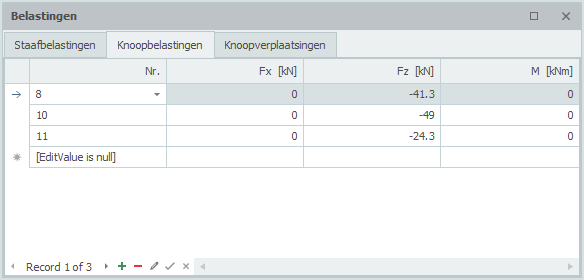
Fx
Grootte van de kracht in kN in x-richting
Fz
Grootte van de kracht in kN in z-richting
My
Grootte van het moment in kNm om y-as.
F
Grootte van de vectorkracht in kN
dx
Relatieve afstand in x-richting
dz
Relatieve afstand in z-richting
Met dx en dz wordt de richting van de vectorkracht vastgelegd. De verhouding dx / dz bepaalt de hoek.
Tabel
Knoopbelastingen kunnen ook in de tabel worden toegevoegd en/of gewijzigd. Het maakt niet uit. U kunt ook tussentijds wisselen tussen grafische invoer en tabellarische invoer.
XFrame2d 2.01
Knoopverplaatsingen

Knoopverplaatsingen worden in een lokaal Knoop-assenstelsel opgegeven. Zie Tekenafspraak.
Het onderstaande dialoogvenster wordt geopend.
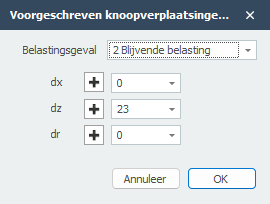
Belastingsgeval
Keuze van het belastingsgeval. Hier kunt u ook direct een nieuw belastingsgeval aanmaken.
De knoopverplaatsing wordt standaard in het globale assenstelsel ingevoerd. Wanneer er voor de betreffende knoop een lokaal assenstelsel is opgegeven, dan wordt de verplaatsing t.o.v. dit assenstelsel opgegeven.
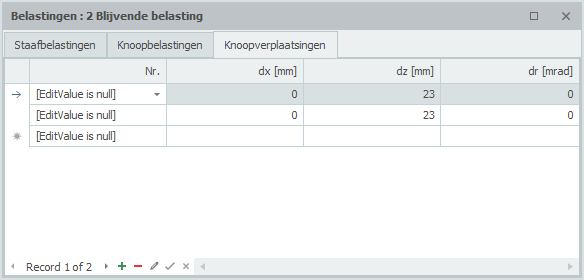
dx
Grootte van de verplaatsing in mm in x-richting
dz
Grootte van de verplaatsing in mm in z-richting
dr
Grootte van de rotatie in mrad om de y-as.
Tabel
Knoopverplaatsingen kunnen ook in de tabel worden toegevoegd en/of gewijzigd. Het maakt niet uit. U kunt ook tussentijds wisselen tussen grafische invoer en tabellarische invoer.
XFrame2d 2.01
Bewerken
Bewerken


Hernummeren
Met deze functie worden de knopen en staven hernummerd.
 (Ctrl+Z)
  (Ctrl+Y)
Elke aanpassing kan onbeperkt ongedaan worden gemaakt en herhaald worden. Wilt u terug naar een vorige situatie? Dat is mogelijk. De ongedaan maken functie helpt u foutloos en snel.
Een verkeerde of per ongeluk gemaakte invoer kan worden hersteld, maar met deze functie kunt u ook snel verschillende oplossingen vergelijken. Het helpt u een optimaal ontwerp van uw constructie te maken.
Bekijk de demo.
Kopiëren
Met deze functie kunt u eenvoudig geselecteerde knopen en staven kopiëren.

Verplaatsen
Met deze functie kunt u eenvoudig knopen verplaatsen. U selecteert de betreffende knoop met behulp van het 'selectievenster'. Daarna markeert u het beginpunt door op het scherm te klikken. Verplaats nu de muis in de richting waarin u de knoop wilt verplaatsen. Net als bij het tekenen is een maatlijn zichtbaar. U kunt ook direct de afstand invoeren via uw toetsenbord. U sluit af met de Enter-toets.
Alle knopen worden relatief verplaatst.

Verwijderen
Met deze functie kunt u eenvoudig onderdelen verwijderen. U selecteert het betreffende onderdeel met behulp van het 'selectievenster'.
XFrame2d
Selecties maken
Voor het selecteren van een (groot) aantal knopen of staven in één keer kunt u het 'Selectievenster' of 'Selectie kruisend' gebruiken.
Dit werkt precies hetzelfde als u misschien kent van o.a. AutoCAD.
U tekent een 'venster' van links naar rechts. U tekent een 'kruisend' van rechts naar links.
'Selectievenster' (van linksonder naar rechtsboven)
1) Bepaal met uw muis het startpunt van het venster dat u wilt tekenen. Dit is de linkerhoek van het venster dat u wilt tekenen.
2) Druk op de linker muisknop.
3) Terwijl u de linker muisknop ingedrukt houdt, verplaatst u de muis naar rechts. Er wordt een venster getekend in (gedeeltelijk transparant) blauw.
4) Wanneer u de linker muisknop loslaat, worden alle knopen en staven die volledig in dit venster liggen geselecteerd.
'Selectie kruisend' (van rechtsboven naar linksonder)
1) Bepaal met uw muis het startpunt van het venster dat u wilt tekenen. Dit is de rechterhoek van het venster dat u wilt tekenen.
2) Druk op de linker muisknop.
3) Terwijl u de linker muisknop ingedrukt houdt, verplaatst u de muis naar links. Er wordt een venster getekend in (gedeeltelijk transparant) groen.
4) Wanneer u de linker muisknop loslaat, worden alle knopen en staven die gedeeltelijk in dit venster liggen geselecteerd.
Multi-selectie
Om meerdere knopen of staven te selecteren kunt u de CTRL-toets of de SHIFT-toets gebruiken.
Door de CTRL-toets of de SHIFT-toets continu ingedrukt te houden, 'tekent' u het selectievenster zoals hierboven beschreven.
Bekijk deze demo waarin enkele mogelijkheden van 'selectievenster/kruisend' worden getoond.
XFrame2d
Beeld
Beeld


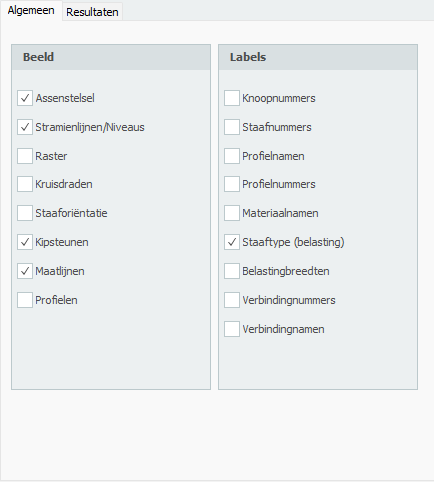
Weergaveopties
Er zijn veel manieren om de grafische weergave in te stellen. Zie Weergaveopties.

Zoomvenster
Met deze functie kunt u inzoomen op een deel van uw constructie. U kunt dit gebruiken om de grafische invoer te vergemakkelijken of om lokale resultaten te evalueren.

Verschuiven
Met verschuiven kunt u een ingezoomd deel van uw tekening slepen/verplaatsen. Andere delen van de constructie worden gepresenteerd.

Zoom alles
Met zoom alles wordt de totale constructie op volledig scherm getoond.

Vorige weergave
Met zoomweergave kunt u in meerdere stappen inzoomen op een deel van de constructie. Met de functie vorige weergave gaat u 1 stap terug.

Hier kunt u de snap-instellingen aanpassen. Zie Snap-instellingen.
XFrame2d
Weergaveopties
As
Teken het globale assenstelsel.
Stramienlijnen / Niveaus
Stramienlijnen, niveaus en/of hulplijnen worden gestippeld getekend. Zie Stramienlijnen / Niveaus.
Regelmatig raster
Er wordt een regelmatig raster getekend. De grootte en de kleur van het regelmatige raster zijn aanpasbaar. Zie Regelmatig raster.
Kruisdraden
Er worden twee kruisdraden getekend (horizontaal en verticaal). Dit kan handig zijn bij het invoeren van knopen en staven.
Staaforiëntatie
Het lokale assenstelsel (zie Tekenafspraak) wordt in het midden van de staaf getekend. De richting van de lokale z-as wordt getoond. Dit is belangrijk voor het invoeren van de staafbelastingen die in het lokale staaf-assenstelsel worden ingevoerd. Zie Staafbelastingen.
Knoopnummers
Knoopnummers worden tussen haakjes (..) bij de knoop getoond.
Staafnummers
De staafnummers worden tussen vierkante haken [..] bij de staaf getoond.
Profielnamen
De profielnamen worden bij de staaf getoond.
Profielnummers
Materiaalnamen
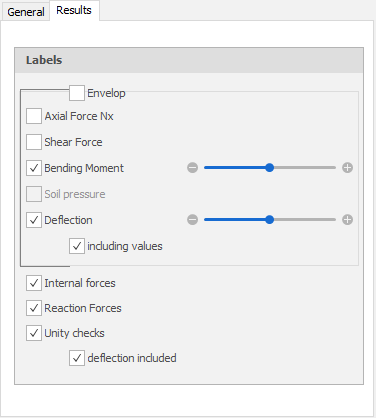
Normaalkracht
Tekening van de N-lijn. De schaal kan worden ingesteld.
Dwarskracht
Tekening van de D-lijn. De schaal kan worden ingesteld.
Buigend moment
Tekening van de M-lijn. De schaal kan worden ingesteld.
Gronddruk
Voor staven op een elastische fundering (fundering op staal) kan de gronddruk worden weergegeven. De schaal kan worden ingesteld.
Doorbuiging
Tekening van de doorbuigingslijn. De schaal kan worden ingesteld.
Interne krachten
Tekening van de interne krachten.
Reactiekrachten
Tekening van de reactiekrachten in alle opleggingen.
Unity checks
Per staaf kunnen de unity checks worden weergegeven. Dit zijn resultaten van de toetsing volgens de Eurocode (staal of hout). Wanneer de unity check kleiner is dan 1,00 voldoet de staaf aan de criteria en wordt een groene stip getekend.  . Wanneer de unity check groter is dan 1,00 voldoet de staaf niet aan de criteria en wordt een rode driehoek
  getekend.
Wanneer u dubbelklikt op de stip/driehoek, wordt een gedetailleerde berekening van de betreffende staaf getoond.
XFrame2d
Dockbare vensters
Wat zijn dit? Dockbare vensters zijn vensters die vrij verplaatst kunnen worden of op vaste plaatsen geplaatst kunnen worden (links/rechts/boven/onder in het scherm).
Bekijk de demo waarin enkele mogelijkheden van 'dockbare vensters' worden getoond.
De tabellen voor Geometrie (Stramienlijnen / Niveaus, Knopen, Profielen en Staven) en de tabellen voor Belastingen (Belastingcombinaties, Staafbelastingen, Knoopbelastingen en Combinaties) kunnen wel of niet worden weergegeven.
U kunt uw constructie volledig grafisch invoeren, waarbij het gebruik van tabellen niet echt nodig is. Toch kan het handig zijn om bijvoorbeeld de knoopcoördinaten in tabellen te zien. Dit is mogelijk. Maar in tegenstelling tot veel andere programma's kunt u ook wijzigingen in deze tabellen aanbrengen. Het maakt niet uit. Grafisch tekenen of numerieke invoer via tabellen kan gelijktijdig worden gedaan. Na elke wijziging worden alle tabellen bijgewerkt en wordt de constructie opnieuw getekend. Natuurlijk werken de ongedaan maken en opnieuw functies nog steeds.
De vensters kunnen worden ingesteld als 'zwevend' (op een willekeurige positie maar ook buiten het scherm) of kunnen 'gedockt' worden links/rechts/boven/onder in het hoofdscherm. Dit geeft u veel vrijheid. U kunt zelf beslissen wat u het prettigst vindt. Het programma onthoudt deze instelling, dus u hoeft dit maar één keer te doen. Natuurlijk kunt u dit altijd wijzigen.
Bijvoorbeeld, wanneer u twee computerschermen heeft, kunt u de constructie grafisch op volledig scherm tonen op het ene scherm en de tabellen op het andere scherm weergeven.
XFrame2d
Afmetingen wijzigen
Afmetingen of waarden wijzigen in de grafische weergave
-
Verplaats uw cursor naar het getal in de maatlijn.
-
Wanneer de maatlijn focus krijgt, wordt het getal vet weergegeven. De kleur van de maat verandert van grijs naar zwart.
-
Druk op de linker muisknop. Er verschijnt een dialoogvenster met het te bewerken getal.

-
Wijzig de waarde.
-
Druk op OK
 . Het dialoogvenster wordt gesloten en de afmeting is gewijzigd.
of
Druk op Annuleren  om te annuleren.
XFrame2d
Resultaten
Resultaten

Druk op de bereken-knop  of selecteer het tabblad Resultaten en uw constructie wordt zeer snel berekend.
Selecteer combinatie
Hier kunt u de belastingcombinatie of de belastinggeval selecteren die u wilt weergeven.
In weergaveopties kunt u kiezen wat u wilt zien. Zie Weergaveopties.
 Meldingen
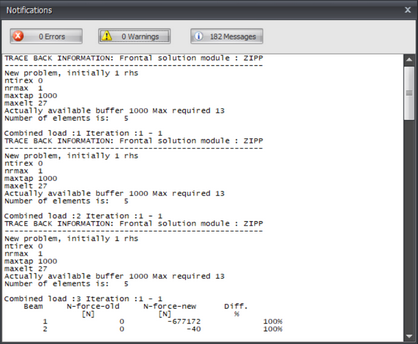
Wanneer de krachtsverdeling niet kan worden berekend, bijvoorbeeld wanneer de constructie instabiel is, wordt een dialoogvenster geopend. Dit scherm kan opnieuw worden geopend met de hierboven getoonde knop. In dit dialoogvenster worden de meldingen van de rekenmodule weergegeven.
 Spion
Spion
Met behulp van de spion kunt u de resultaten van een bepaalde staaf in meer detail bekijken.
Zie Spion.
Instellingen
Berekeningsinstellingen. Zie Berekeningsinstellingen.
 Optimalisatie
Optimaliseer stalen profielen.
XFrame2d
Spion
Met behulp van de spion kunt u de resultaten van een bepaalde staaf in meer detail bekijken.
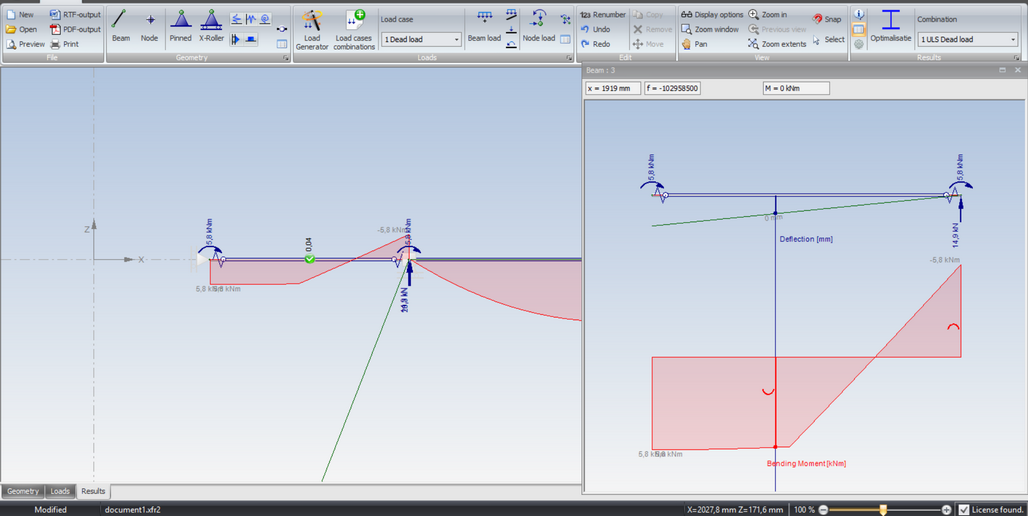
Druk op de knop . Het scherm wordt nu in twee schermen gesplitst. In het linkerscherm wordt de totale constructie getoond, of een ingezoomd deel van de constructie. In het rechterscherm wordt de geselecteerde staaf getoond. Door de verticale splitter te verplaatsen, kan de grootte van beide schermen worden aangepast.
In het linkerscherm klikt u op een van de staven. Deze staaf wordt in het rechterscherm getekend, inclusief de staafkrachten. In het rechterscherm kunt u de verticale lijn verplaatsen. De krachten worden bovenaan het rechterscherm getoond.
U hebt de keuze uit N-lijnen, D-lijnen, M-lijnen en/of doorbuigingslijnen.
Door nogmaals op de knop te drukken, gaat u terug naar slechts één scherm.
XFrame2d
Berekeningsinstellingen

Analyse
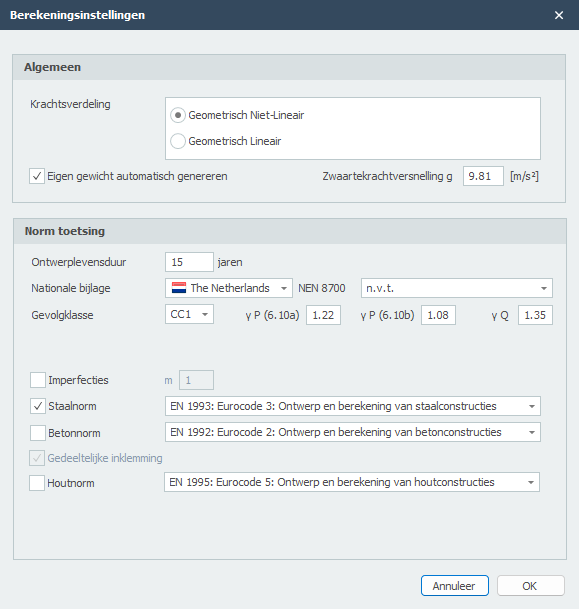
U kunt kiezen tussen twee soorten analyses: Geometrisch niet-lineair (GNL) of Geometrisch lineair (GL). Wanneer u kiest voor een toetsing volgens de Eurocode (hout en staal), is de analyse altijd Geometrisch niet-lineair (GNL).
Eigen gewicht
U kunt kiezen of u het eigen gewicht automatisch wilt laten genereren of niet.
Zwaartekrachtversnelling g
Zwaartekrachtversnelling in m/s².
Normtoets Ontwerplevensduur
De ontwerplevensduur van de constructie in jaren.
Gevolgklasse
De gevolgklasse van de constructie. Dit bepaalt onder andere welke belastingfactoren moeten worden gebruikt.
Nationale Bijlage
De nationale bijlage kan per land worden gekozen.
Staalnorm
De staalnorm die u wilt gebruiken.
Imperfecties
Er kan worden ingesteld of u imperfecties wel of niet wilt meenemen. Voorlopig is in XFrame2d globale scheefstand alleen mogelijk in twee richtingen. De staafimperfecties (staafvervormingen) worden niet meegenomen. De toetsing volgens de Eurocode houdt hier echter wel rekening mee, door de kniklengte gelijk te stellen aan de staaflengte.
m
Alleen relevant voor staalconstructies: Het aantal kolommen in een rij, waarbij alleen die kolommen worden meegeteld die een verticale belasting NEd dragen van niet minder dan 50% van de gemiddelde waarde van de kolommen in het beschouwde verticale vlak.
XFrame2d
Optimalisatie

Met de functie optimalisatie kunt u zeer eenvoudig en snel een optimaal ontwerp van uw staalconstructie maken. Deze functie kan u veel staalkilogrammen besparen.
Hoe werkt dat?
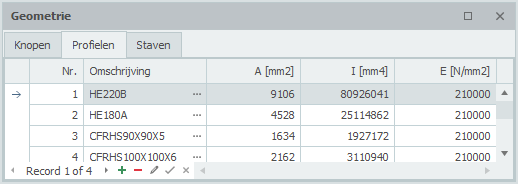
U doorloopt alle profielen (in de tabel Profielen) zoals u die eerder hebt ingevoerd. Zie Staven.
De alternatieven per profiel worden direct getoond. Uit deze alternatieven kunt u een ander profiel selecteren.
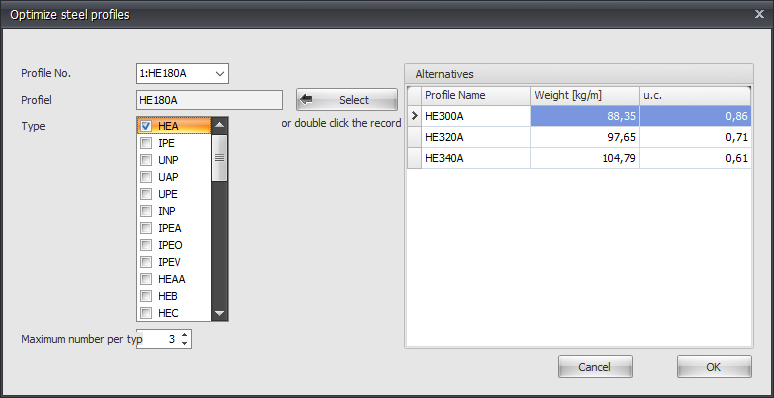
Profiel Nr.
Het profielnummer verwijst naar het profielnummer in de hieronder getoonde tabel Profielen.
Profiel
Het gekozen profiel.
Type
Hier selecteert u het profieltype (of groep) waarin kan worden gezocht naar alternatieve profielen.
Maximum aantal per type
Hier kunt u het maximale aantal alternatieven per profieltype invoeren. Standaard staat deze waarde op 3, maar u kunt deze waarde variëren.
Hiermee kiest u een profiel uit de rechtertabel 'Alternatieven'. U kunt ook dubbelklikken op de regel in de tabel om het profiel te kiezen.
Alternatieven
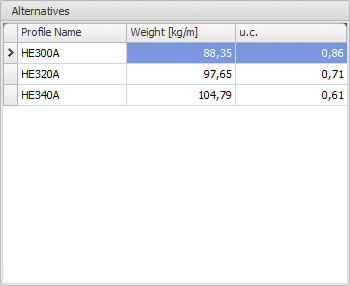
In deze tabel worden de mogelijke alternatieven direct getoond. Normaal gesproken is de tabel gesorteerd op de unity check (u.c.). Deze unity check is de maatgevende toets volgens de Eurocode EN1993. Het is ook mogelijk om de tabel te sorteren op profielnaam of gewicht door op de kolomtekst te klikken.
Opmerking: Door het wijzigen van het traagheidsmoment verandert ook de krachtsverdeling. De optimalisatiefunctie houdt hier geen rekening mee. Het kan voorkomen dat de nieuw geselecteerde profielen niet voldoen voor uw ontwerp en u de optimalisatie opnieuw moet uitvoeren. U zult echter ervaren dat het optimale ontwerp snel en eenvoudig wordt bepaald.
XFrame2d
Menu
Menu
Bestand
Nieuw
Nieuwe invoer

Openen
Openen van een bestaand bestand
Sluiten
Sluiten van een geopend bestand

Opslaan
Invoergegevens opslaan in een bestand
Opslaan als
Invoergegevens opslaan in een ander (kopie) bestand

Afdrukvoorbeeld
Maken van een afdrukvoorbeeld op scherm

Afdrukken
Afdrukken van de berekening

RTF-uitvoer
Uitvoer opslaan in RTF-formaat (MS-Word)

PDF-uitvoer
Uitvoer opslaan in PDF-formaat
Afsluiten
Programma wordt afgesloten
Geometrie
Staaf
Invoeren van staven. Staven
invoeren van knopen. Knopen
scharnier
Scharnierende oplegging. Opleggingen
roloplegging z-richting
roloplegging z-richting
roloplegging x-richting
roloplegging x-richting
volledige inklemming
volledige inklemming
verende oplegging x-richting
verende oplegging x-richting. Translatieveer in x-richting.
verende oplegging z-richting
verende oplegging z-richting. Translatieveer in z-richting.
verende oplegging om y-as
verende oplegging om de y-as. Rotatieveer op y-as.

scharnier in staaf
scharnier in staaf. Hiermee kunt u eenvoudig en snel een gerberligger invoeren.
Belasting
q-belasting
Gelijkmatig verdeelde staafbelasting of een lineair verlopende staafbelasting (bijv. driehoeksbelasting) Staafbelastingen
F-belasting
Puntlast op staaf.
M-belasting
Momentlast op staaf
Knoopbelasting
Belasting op knoop. (Fx kracht in x-richting, Fz kracht in z-richting en/of My moment om y-as) Knoopbelastingen

Knoopverplaatsing
Voorgeschreven verplaatsing van de knoop. (dx verplaatsing in x-richting, dz verplaatsing in z-richting en/of dr rotatieom om y-as) Knoopbelastingen
Bewerken
Ongedaan maken
Bewerking ongedaan maken. Alle bewerkingen worden intern opgeslagen. Met behulp van deze functie kunnen een of meerdere berwerkingen ongedaan worden gemaakt. Er is geen limiet in het aantal stappen dat kan worden teruggegaan.
Herhalen
Bewerking herhalen

Selecteren
Zet instelling op: Selecteren. U kunt in deze modus in het grafische scherm een profiel selecteren (actief maken).
Werkwijze: Verplaatst de cursor binnen het contour van het profiel en druk op de linker muisknop.
Verplaatsen
Zet instelling op: Verplaatsen. In deze modus kan het actieve profiel in het grafische scherm worden verplaatst.
Er wordt automatische ge-snapt naar alle voorkomende contourpunten en punten in het midden van alle lijnstukken. De modus wordt niet uitgeschakeld.
Relatief verplaatsen
In een dialoogvenster wordt de relatieve verplaatsingen dy en dz opgevraagd. Het actieve / geselecteerde profiel kan over een vaste afstand worden verplaatst.
Verwijderen
Verwijderen van het actieve / geselecteerde profiel.
Beeld
Zoom venster
Zet instelling op: Inzoomen op een venster. Deze functie wordt gebruikt om in te zoomen op een bepaald gedeelte in de doorsnede tekening.
Werkwijze: Met de linker muisknop ingedrukt trekt u een rechthoekig venster van linksonder naar rechtsboven. De modus wordt automatisch uitgeschakeld nadat is ingezoomd.
Zoom alles
Zet instelling op: Zoom alles. Deze functie wordt gebruikt om alles te laten zien. De modus wordt automatisch uitgeschakeld wanneer is uitgezoomd.
Verslepen
Zet instelling op: Verslepen.
Werkwijze: Met de linker muisknop ingedrukt kunt u de tekening verslepen.
Opties

Afstand meten
Zet instelling op: Afstand meten. In deze modus kunnen afstanden worden gemeten.
Er wordt automatische ge-snapt naar alle voorkomende contourpunten en punten in het midden van alle lijnstukken. De modus wordt niet uitgeschakeld.
Werkwijze: Selecteer het beginpunt waarbij u gebruik maakt van de snap-functie. Met de linker muisknop ingedrukt gaat u naar een ander bekend punt. Terwijl u de linker muisknop ingedrukt houdt wordt een maatlijn getekend en verschijnt een klein venster waarin de afstanden dL, dy en dz in mm worden weergegeven.
Instellingen
Aanpassen van instellingen. (zie Instellingen)
Demo's
Dialoogvenster met daarin de keus uit verschillende demo's.
Help

Help
Openen help file
Info
Informatie m.b.t. de applicatie en licentiegegevens.
XFrame2d 2.01
Instellingen
Instellingen
Menu: Opties > Instellingen
Het dialoogvenster instellingen bestaat uit 3 tabbladen:
Alle door u ingestelde waarden worden opgeslagen in de registries. Wanneer het programma opnieuw wordt gestart worden alle eerder ingestelde waarden gelezen en geactiveerd.

Zonder dat u het dialoogvenster verlaat kunt u zien welke effect de instelling heeft.
Let op!. Wanneer u de ingestelde waarden definitief wilt toepassen en bewaren moet u de knop Ok gebruiken.
Standaardwaarden
Alle waarden worden weer teruggezet naar de standaard waarden.
OK
Het dialoogvenster wordt gesloten en alle ingestelde waarden worden toegepast en opgeslagen in de registries.
Annuleer
Het dialoogvenster wordt gesloten en blijven eerdere instellingen van kracht.
XFrame2d 2.01
Instellingen Tekening
Menu: Opties > Instellingen (tabblad Tekening)
Geselecteerd profiel
Kleurinstelling van het geselecteerde (actieve) profiel
Alle profielen
Kleurinstelling van alle overige profielen
Assenstelsel
Instelling of het assenstelsel getekend moet worden.
Kleurinstelling van het assenstelsel.
Zwaartepunten
Instelling of het zwaartepunt met de afstanden naar de uiterste vezels getekend moet worden.
Kleurinstelling van de lijnen.
Traagheidsstraal
Instelling of de traagheidsellips met de afstanden naar de uiterste vezels getekend moet worden.
Kleurinstelling van de traagheidsellips en van de lijnen.
Kruisdraden
Instelling of de kruisdraden getekend moet worden.
XFrame2d 2.01
Snap instellingen
Tabblad Instellingen & Help > Instellingen > tabblad Snap instellingen
Wat is de Snap-functie?
Wanneer in het grafische scherm de cursor in de buurt komt van een bekend punt en/of rand, wordt de cursor automatisch naar dit punt verplaatst. Er wordt ge-snapt naar dit punt.
In veel bekende tekenpakketten wordt gebruik gemaakt van deze functionaliteit. Het stelt u in staat om een exact punt te selecteren.
Een zeer handige functionaliteit bij het tekenen of het verplaatsen van een knoop en/of een staaf.
Snapsize
De grootte in mm waarbinnen gezocht wordt naar een bekend punt (knoop / het midden van een staaf / stramienlijn). Standaard is de snapsize ingesteld op 150 mm. Over het algemeen voldoet deze waarde.
Snap naar knoop
Hier wordt ingesteld of er ge-snapt moet worden naar de dichtstbijzijnde knoop.
Snap naar staafmidden
Hier wordt ingesteld of er ge-snapt moet worden naar het midden van een staaf. Er wordt een rood rechthoekje zichtbaar wanneer dit punt gevonden wordt.
Snap naar stramienlijnen/niveaus
Stramienlijnen en niveaus kunnen worden gebruikt. Hier wordt ingesteld of er ge-snapt moet worden naar de snijpunten. Knopen volgen de stramienlijnen en niveaus. De knoop wordt lichtgrijs getekend en volgt deze lijnen. Rechtsonder in beeld ziet u de knoopcoördinaten. U kunt een knoop zo eenvoudig grafisch plaatsen. Vanzelfsprekend kunt u de exacte knoopcoördinaten achteraf ook getalsmatig wijzigen. Wanneer u dubbelklikt op de knoop wordt een dialoogvenster geopend. Ook kunt u in deze tabel de knoopcoördinaten wijzigen. Wanneer u op de knoop klikt, wordt de focus direct op de betreffende regel in de knopentabel gezet.
Snap naar bestaande coördinaatlijnen
Alle knopen die zijn ingevoerd worden niet zichtbaar toegevoegd aan de stramienlijnen en niveaus. Hierop kan wel worden ge-snapt. Dit is een zeer handige functionaliteit. Vaak is de geometrie van een constructie regelmatig. Meerdere knopen liggen dan vaak op dezelfde x- of z-coördinaat. Een constructie kan daardoor zeer eenvoudig en snel worden ingevoerd.
XFrame2d 2.01
Regelmatig raster
Tabblad Instellingen & Help > Instellingen > tabblad Regelmatig raster
Kleur regelmatig raster
Er kan een regelmatig raster op het oppervlak worden getekend. De kleur is aanpasbaar.
Minimale rastergrootte
Hier kan de grootte van het oppervlak worden ingesteld.
Rastergrootte
De breedte (dx) en de hoogte (dz) van het regelmatige raster kunnen worden ingesteld.
XFrame2d
Instellingen Uitvoer
Menu: Opties > Instellingen (tabblad Uitvoer)
Tekening
Instelling of de tekening van de doorsnede in de uitvoer moet worden opgenomen.
Tekeninggrootte
De hoogte en breedte op papier in mm.
De hoogte is gelimiteerd tot maximaal 190 mm. De breedte is gelimiteerd tot maximaal 150 mm.
Kleur profielen
Willekeurige kleurinstelling van alle profielen.
XFrame2d 2.01
Eigen profielen
Tabblad Instellingen & Help > Instellingen > tabblad Eigen profielen
Map
Opties voor mappen waar de 'eigen profielen' worden opgeslagen.
XFrame2d
Afdrukvoorbeeld
Menu: Bestand > Afdrukvoorbeeld
Toolbar: 
Het dialoogvenster van afdrukvoorbeeld biedt naast de standaard functionaliteit ook veel extra's waaronder het direct aanmaken van een email met daaraan gekoppeld de berekening in PDF-formaat. Ook kunt u vanuit hier een PDF-bestand genereren of een watermerk in uw uitvoer opnemen.
Wilt u een berekening in een Word-document plaatsen die wordt bijgewerkt zodra het model wijzigt, in plaats van hem eenmalig te exporteren, zie dan de Word-invoegtoepassing.
XFrame2d 2.01
Referenties
Mogelijkheden en beperkingen
Mogelijkheden en beperkingen
XFrame2d 2.01
Mogelijkheden
·Het programma bepaalt voor een tweedimensionale staafconstructie met gekozen stijfheden, de vervormingen en krachtsverdeling onder invloed van knoop- en/of staafbelastingen of voorgeschreven verplaatsingen.
·De krachtsverdeling wordt bepaald volgens de verplaatsingsmethode, waarbij rekening wordt gehouden met normaal- en dwarskrachtvervorming.
·Er kan gekozen worden voor lineaire krachtsverdeling (eerste orde) of geometrisch-niet-lineaire krachtsverdeling. (tweede orde)
·Er zijn zeer veel soorten opleggingen mogelijk. Vanzelfsprekend de bekende en standaard scharnieroplegging, roloplegging en momentvaste oplegging. ·In XFrame2d kunt u echt willekeurig uw oplegging samenstellen. Verend in de x-richting en star opgelegd in de z-richting, of momentvast en in x-richting vrij, enz. Ook opleggingen die vrij kunnen komen kunnen worden ingevoerd. Bijv. alleen een positieve reactiekracht. Ontstaat een negatieve reactie dan wordt de ’restrain’ vrijgelaten en komt de oplegging vrij. Nieuw in deze versie is dat u door gebruik te maken van een lokaal assenstelsel elke willekeurige oplegging onder een willekeurige hoek kunt plaatsen.
·Staven kunnen 'verend' (d.w.z. met rek- en/of rotatieveren) worden 'aangesloten' aan knopen.
·Afhankelijk van gekozen run-optie kunnen in een bepaalde belastingscombinatie per staaf extreme momenten en vervormingen, of alle karakteristieken (dwarskracht, moment, hoekverdraaiing en vervorming) worden berekend.
·Bij een geometrisch-niet-lineaire krachtsverdeling (tweede orde) kan worden gekozen voor een spanningsberekening staal volgens Eurocode 3: EN 1993-1-1 en een spanningsberekening hout volgens Eurocode 5: EN 1995-1-1.
·Met de belastinggenerator kunnen sneeuw- en windbelastingen volgens de Eurocode zeer snel en eenvoudig worden bepaald. Zie Belastinggenerator.
·In de nieuwe versie (3.01) is het mogelijk om ook alle momentvaste staalverbindingen in te voeren. Bij de berekening wordt rekening gehouden met de belastingafhankelijke rotatiestijfheid van elke aangesloten verbinding. Zie Verbindingen.
XFrame2d 2.01
Beperkingen
Hoewel het programma ruim van opzet is kent het voor de verschillende onderdelen de volgende beperkingen :
Hoogste knoopnummer
1000
Hoogste staafnummer
2000
Hoogste profielnummer
100
Hoogste aansluitingsnummer
100
Aantal belastingsgevallen
250
Aantal belastingsgevallen per combinatie
15
Aantal belastingscombinaties
250
·Het programma is alleen geschikt voor prismatische staven. Een niet-prismatische staaf kan natuurlijk wel worden gesimuleerd door deze op te delen in een aantal staven met verlopende stijfheden.
·Momentvaste aansluitingen (knoopverbindingen) kunnen uitsluitend lineaire verend worden voorgesteld. Een niet-lineaire (of tri-lineaire) voorstelling is vooralsnog niet mogelijk.
XFrame2d 2.01
Tekenafspraak
Het programma kent drie rechtsdraaiend assenstelsels :
1. Hoofd-assenstelsel
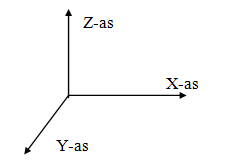
De ligging van dit globale assenstelsel is willekeurig. Het XY-vlak valt samen met het vlak van het raamwerk. Dit assenstelsel wordt gebruikt voor het vastleggen van knoopcoördinaten, knoopbeperkingen en knooppuntsbelastingen. Berekende knooppuntsvervormingen en oplegreacties worden ten opzichte van dit assenstelsel weergegeven.
2. Staaf-assenstelsel
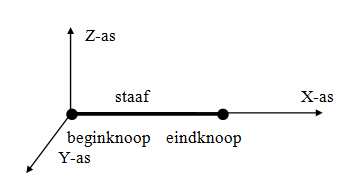
De oorsprong van dit assenstelsel ligt altijd in de beginknoop van betreffende staaf. Het XY-vlak valt samen met het vlak van het raamwerk. De X-as valt samen met de staafas.
3. Knoop-assenstelsel
Er kan een lokaal (knoop-)assenstelsel worden opgegeven. De oorsprong ligt in de betreffende knoop. De richting van de X-as wordt bepaald door vanuit de knoop relatief een dx en dz op te geven. (zie bovenstaande figuur). Lokale assenstelsels kunnen worden gebruikt om knoopbeperkingen (opleggingen of ‘restrains’) , knoopbelastingen en/of knoopverplaatsingen in een willekeurige richting op te geven.
De in- en uitvoergegevens worden ten opzichte van de hierboven beschreven assenstelsels weergegeven.
·Een kracht in de richting van de positieve X- of Z-as wordt als positief beschouwd. ·Een moment draaiend van de positieve X-as naar de positieve Z-as (volgens kurkentrekker-regel) is positief. ·Een moment tegengesteld aan de 'klokrichting' is positief.
XFrame2d 2.01
Achtergrond
Achtergrond
XFrame2d
Knik
XFrame2D heeft een volledig geïntegreerde Eurocode EN 1993 staal en EN 1995 hout ontwerpmodule. Staal / hout toets / ontwerpregels volgens de nieuwste Europese normen. U bent up-to-date met de laatste normen. In XFrame2D zijn alle Eurocode ontwerptoetsen gebaseerd op een geometrisch niet-lineaire analyse. Imperfecties (initiële scheefstand imperfecties) worden automatisch meegenomen in de berekening van belastingcombinatie(s).
Dit is een zeer nauwkeurige rekenmethode en is toepasbaar voor elk type frame. Schommel- of geschoorde/niet-schommelframes. Ook is het niet meer nodig om (foutgevoelige) kniklengtes te berekenen. De geometrisch niet-lineaire analyse (tweede-orde analyse) zorgt voor een globale knikstabiliteitscontrole.
De manier waarop de staaltoets volgens de Eurocode is geïmplementeerd
Toelichting:
Volgens Eurocode EN 1993-1-1 art. 5.2.2 (7) a) is geen individuele stabiliteitstoets voor de elementen volgens 6.3 nodig als tweede-orde effecten in individuele elementen en relevante elementimperfecties (zie 5.3.4) volledig zijn meegenomen in de globale analyse van de constructie. (Globale initiële scheefstand imperfecties en relatieve initiële lokale boogimperfecties van elementen voor buigknik).
In XFrame2d worden de globale initiële scheefstand imperfecties volgens art. 5.3.2 (3) a) automatisch meegenomen. De relatieve initiële lokale boogimperfecties van elementen voor buigknik volgens art. 5.3.2 (3) b) echter niet.
Dit betekent dat de individuele stabiliteit van de elementen moet worden gecontroleerd volgens 6.3, waarbij de kniklengte gelijk mag worden gesteld aan de systeemlengte. Volgens art. 5.2.2 (7) b). Door toepassing van een geometrisch niet-lineaire analyse zijn de momenten en krachten natuurlijk inclusief alle tweede-orde effecten.
Deze aanpak heeft veel voordelen:
- Het is niet meer nodig om (foutgevoelige) kniklengtes te berekenen. Kniklengtes worden niet in alle gevallen correct berekend en zijn zeker niet belastingonafhankelijk.
- Het is niet nodig om een keuze te maken voor het type frame, geschoord of niet-schommel. Wanneer het frame gevoelig is voor 2e orde, volgt dit direct uit de analyse.
- Door globale initiële scheefstand imperfecties van het frame werkt het berekeningsproces (de iteratie) ook goed met een symmetrische constructie en symmetrische belasting.
- Aangrenzende belastingen kunnen eenvoudig worden meegenomen.
- Kipstabiliteit is ook opgenomen in de stabiliteitstoets volgens 6.3.3.
XFrame2d
Tapse balk
U kunt optioneel een tapse balk invoeren. Het tabblad "Profiel einde" wordt geactiveerd. Hier kunt u het 2e profiel aan het einde van de staaf invoeren. Let op! De basisvorm van het profiel (H-, U-, L-vorm, etc.) moet overeenkomen met die van het profiel aan het begin van de staaf.
Krachtsverdeling
Voor de mechanica berekening wordt de staaf automatisch verdeeld in een aantal staafdelen met een lengte die overeenkomt met de gemiddelde profielhoogte. De profielsnede-eigenschappen zoals traagheidsmoment worden in het midden van elk staafdeel berekend. Voor elk staafdeel wordt een constant traagheidsmoment berekend. Omdat de staafdelen vrij kort zijn, blijkt deze benadering voldoende nauwkeurig.
Spanningstoetsing
Voor de spanningstoetsing worden de profielsnede-eigenschappen per doorsnede (per x-afstand) berekend. Deze berekening is dus exact.
XFrame2d
Doorsnedeclassificatie
NEN-EN 1993-1-1 tabel 5.2
De samengestelde doorsnede wordt geclassificeerd conform NEN-EN 1993-1-1 tabel 5.2
Hierbij worden de volgende uitgangspunten gehanteerd:
- NEN-EN 1993-1-1 tabel 5.2
- Er wordt rekening gehouden met de ingevoerde waarde voor de vloeigrens fy
- Classificatie bij zuiver druk (Dit is vanzelfsprekend de meest ongunstige toetsing)
- Classificatie bij zuivere buiging om de y-as My- (druk aan de bovenzijde)
- Classificatie bij zuivere buiging om de y-as My+ (druk aan de onderzijde)
- Geen classificatie op basis van een combinatie van axiale belasting en buiging om de y-as
- Er wordt geen doorsnedereductie toegepast
- Er wordt geen spanningcorrectie toegepast om doorsnede klasse 4 als klasse 3 te kunnen beoordelen (zie NEN-EN 1993-1-1 art. 5.5.2 (9))
- Strippen worden automatisch beoordeeld als uitkragende flenzen of als inwendige belaste onderdelen
- Alle onderdelen waaraan halverwege een verstijving (bijvoorbeeld in de vorm van een strip) wordt gelast, worden niet meer in doorsnedeclassificatie betrokken. Deze onderdelen worden verondersteld niet meer plooigevoelig te zijn. De stijfheid van de verstijvingen als ook de plaats waar de verstijving wordt aangebracht, wordt niet in deze beoordeling meegenomen. In een aantal gevallen zal een handmatige aanvullende toetsing nodig zijn.