Nodes
Nodes can be easily added in the graphical screen. Choose in the function bar for  In this mode you can add multiple nodes using the left mouse button. When placing, you will see the coordinates at the bottom right of the screen.

Nodes can be placed arbitrarily, in a fixed grid, or on grid lines.
Supports are nodes that are fixed in a certain direction.
Modifying a node
You can modify a node by clicking on the node with the left mouse button and then choosing properties with the right mouse button. Or even easier by double clicking on the node. The following dialog window opens:
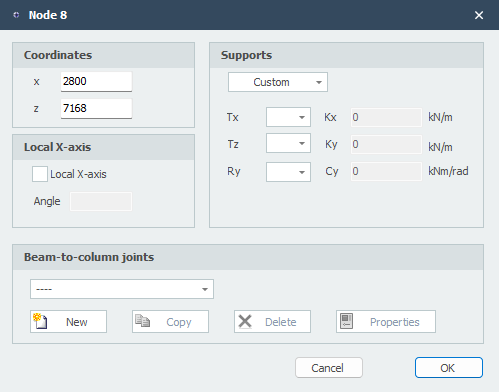
Coordinates
x x-coordinate
z z-coordinate
Restrictions
See Supports
Local X-axis
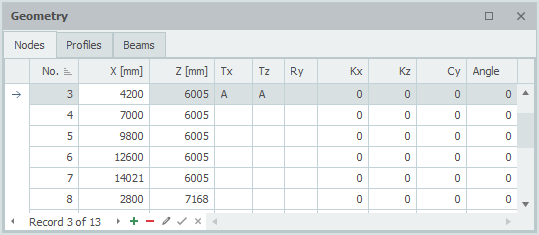
Node Table
Nodes can also be added and/or modified in the Nodes table at the bottom left. It doesn't matter. You can also switch between graphical input and tabular input at any time.